Starting a website can feel overwhelming if you have never done it before, but a proper WordPress website setup breaks the process down into manageable steps that anyone can follow. Whether you are building a blog, a portfolio, or a small business site, understanding WordPress website setup from start to finish will save you time, money, and frustration. This guide walks you through every stage of the process, from choosing a domain name to launching a fully functional site that is ready for visitors and search engines alike.
By the end of this guide, you will know exactly how WordPress website setup works, which decisions matter most, and how to avoid the mistakes that trip up most beginners. Let’s get started.
What Is WordPress Website Setup and Why It Matters
WordPress website setup refers to the complete process of getting a WordPress site live and ready for use. This includes registering a domain, choosing web hosting, installing the WordPress software, selecting a theme, adding essential plugins, and configuring your site’s core settings. A thoughtful setup lays the foundation for everything that follows — your site’s speed, security, search visibility, and overall user experience all trace back to how well the initial WordPress website setup was handled.
Many beginners rush through the process just to see a live page, but skipping steps early on often means going back later to fix avoidable problems. Taking the time to do WordPress website setup properly the first time means fewer headaches down the road, whether you are managing the site yourself or handing it off to a developer.
WordPress powers a huge share of websites online today because it is flexible, beginner-friendly, and backed by a massive ecosystem of themes and plugins. That popularity is exactly why learning WordPress website setup is such a valuable skill, whether you run one site or plan to build several over time. It also means that if you ever get stuck, there is an enormous community of tutorials, forums, and documentation to help you work through any part of your project.
WordPress.com vs. WordPress.org: Know the Difference Before You Start
Before diving into WordPress website setup, it helps to understand that “WordPress” actually refers to two different services. WordPress.com is a hosted platform where the company manages hosting for you, with limited customization on free and lower-tier plans. WordPress.org is the free, self-hosted software that most professionals mean when they talk about WordPress website setup — you install it on hosting of your choice and have full control over themes, plugins, and functionality.
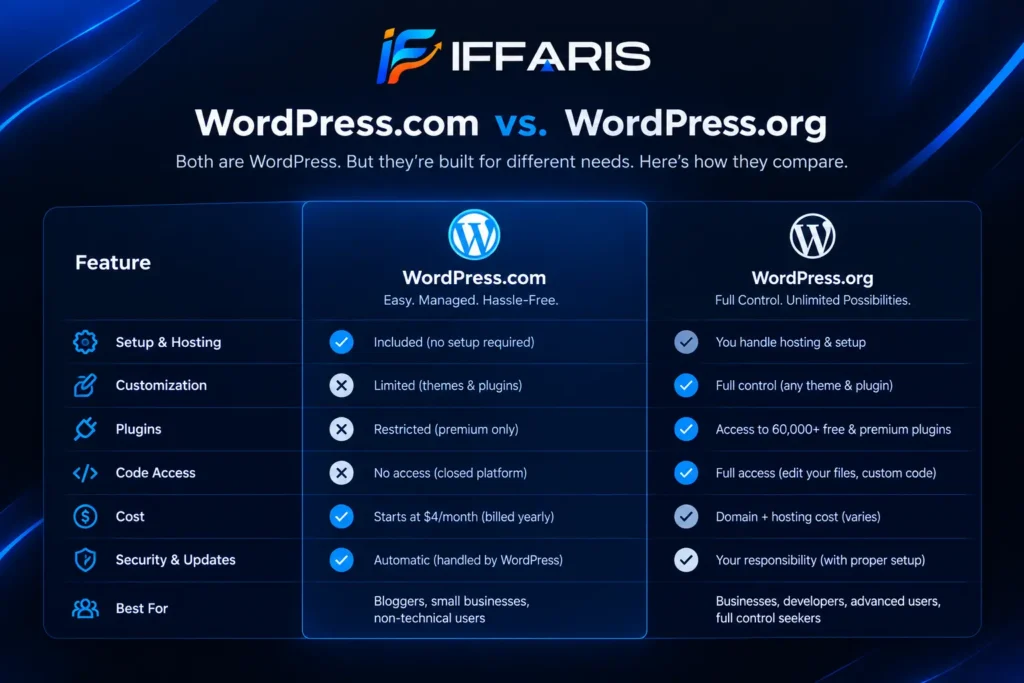
For anyone who wants complete flexibility, self-hosted WordPress.org is the right choice, and it is the version this guide focuses on throughout the rest of your WordPress website setup. Business sites, in particular, almost always benefit from the freedom that a self-hosted setup provides.
Before You Begin: Planning Your WordPress Website Setup
Before you touch any software, a little planning makes WordPress website setup far smoother. Ask yourself what the site is for — a business, a personal blog, an online store, or a portfolio — because the answer shapes almost every decision that follows in the setup process.
Consider the following before diving into the process:
- Purpose: What will visitors do on your site — read, buy, contact you, or book a service?
- Content structure: Which pages do you need (Home, About, Services, Blog, Contact)?
- Branding: Do you already have a logo, color palette, or brand name in mind?
- Budget: How much are you willing to spend on hosting, a domain, and premium tools?
- Growth plans: Will the site stay small, or do you expect to add an online store, membership area, or blog with regular content?
Answering these questions before you start WordPress website setup keeps you from making rushed decisions once you are staring at a blank dashboard. A clear plan turns the entire process from a guessing game into a checklist you can move through with confidence, and it also makes conversations with a developer or agency much more productive if you decide to bring in outside help.
Choosing a Domain Name and Hosting for Your WordPress Website Setup
Every WordPress website setup begins with two foundational purchases: a domain name and a hosting plan. Your domain name is your site’s address on the web, and your host is the company that stores your site’s files and serves them to visitors. Getting these two decisions right early on makes the rest of the process significantly easier.
Picking a Domain Name
When choosing a domain for your WordPress website setup, keep it short, memorable, and easy to spell. Avoid hyphens and numbers where possible, and try to match the domain to your brand name or primary topic. A clean domain name makes the rest of your setup — and your marketing down the line — much easier. If your exact brand name is unavailable, consider a close variation rather than settling for something confusing or hard to pronounce, since this name will represent your site for years to come.
Selecting a Hosting Provider
Hosting quality has a direct impact on how smoothly your finished site performs once it is live. Look for a host that offers:
- One-click WordPress installation
- Solid uptime guarantees (99.9% or higher)
- Fast server response times
- Responsive customer support
- Free SSL certificates
- Daily or automated backups
Shared hosting is a common and affordable starting point for a first WordPress website setup, while managed WordPress hosting offers more performance and security features as your site grows. Managed hosting plans often include automatic updates, built-in caching, and staging environments, which can make later stages of your project considerably easier to manage. Site speed is closely tied to hosting quality, and if you want to dig deeper into how loading times affect rankings, this guide on website speed and SEO is a useful next read once your site is live.
Step-by-Step WordPress Website Setup Process
With a domain and hosting in place, it’s time for the core of WordPress website setup: installing the software itself. Most hosts offer a simplified installer, but understanding each step helps you troubleshoot if anything goes wrong during the process.
- Log in to your hosting dashboard and locate the WordPress installer (often called “one-click install” or “app installer”).
- Select your domain as the destination for the installation.
- Create an admin username and password. Avoid the default “admin” username for security reasons.
- Enter a site title and tagline. You can always change these later during setup.
- Run the installer and wait for confirmation that WordPress has been installed successfully.
- Log in to your WordPress dashboard using the credentials you created to confirm the installation was successful.
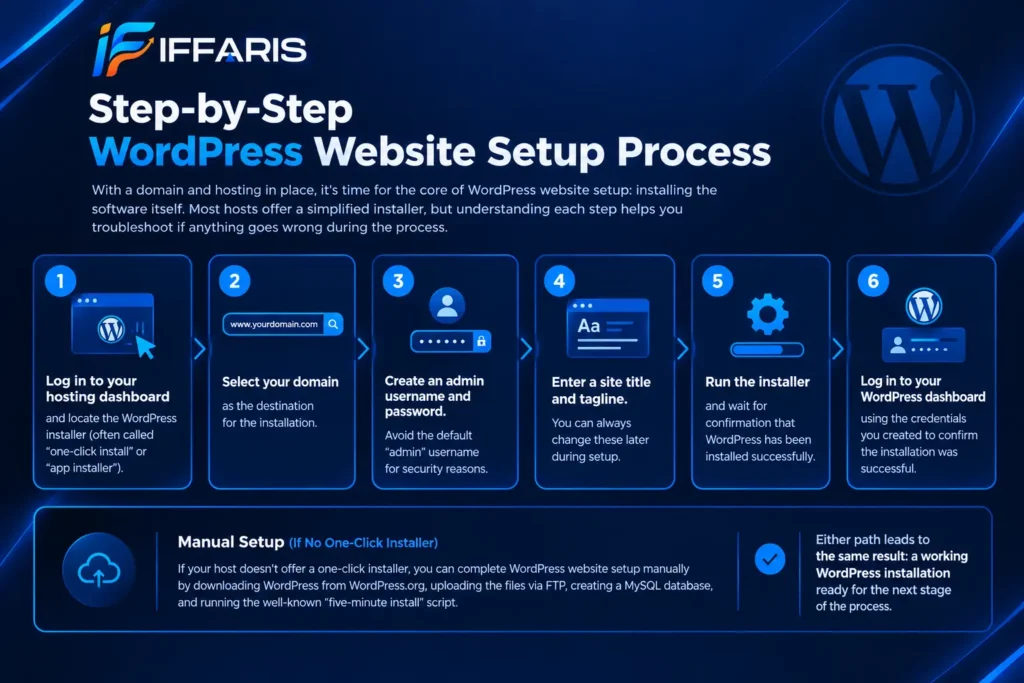
If your host doesn’t offer a one-click installer, you can complete WordPress website setup manually by downloading WordPress from WordPress.org, uploading the files via FTP, creating a MySQL database, and running the well-known “five-minute install” script. Either path leads to the same result: a working WordPress installation ready for the next stage of the process.
Configuring WordPress Settings After Installation
Once installation is complete, the next phase of WordPress website setup involves adjusting your core settings so the site behaves the way you want it to.
Head to Settings > General and confirm your site title, tagline, time zone, and language. Next, go to Settings > Permalinks and choose a URL structure — “Post name” is the most SEO-friendly option and something almost every professional WordPress website setup uses. Under Settings > Reading, decide whether your homepage displays your latest posts or a static page, which matters a great deal for business sites built during a typical setup.
Don’t overlook Settings > Discussion, where you can manage comment moderation, and Settings > Privacy, where you can set up a privacy policy page — an increasingly important part of any compliant, well-rounded setup. Taking ten extra minutes here prevents small annoyances, like unmoderated spam comments, from piling up after launch.
Choosing the Right Theme for Your WordPress Website Setup
Your theme controls your site’s appearance, and choosing the right one is a major decision in any WordPress website setup. Navigate to Appearance > Themes > Add New to browse thousands of free options, or upload a premium theme purchased elsewhere.
When selecting a theme for your setup, prioritize:
- Speed and lightweight code over flashy but bloated designs
- Mobile responsiveness, since most visitors browse on phones
- Compatibility with page builders like Elementor or the native Block Editor
- Regular updates and support, so your site stays secure over time
- Clear documentation, which makes customization far less frustrating
Avoid the temptation to install dozens of demo themes just to compare them — each one adds bloat that slows down your WordPress website setup before you’ve even launched. Pick two or three strong candidates, test them briefly on a staging site if your host allows it, and commit to one before moving forward.
Page Builders vs. the Block Editor
One decision that shapes the rest of your WordPress website setup is how you’ll actually build your pages. WordPress ships with a native Block Editor (often called Gutenberg) that lets you assemble pages from drag-and-drop content blocks without any extra software. It’s free, fast, and increasingly capable, making it a solid default for straightforward sites.
Page builder plugins like Elementor, Divi, or Beaver Builder go a step further, offering more granular design control, pre-built templates, and visual editing that closely mirrors the finished page. Many agencies lean on a page builder for client sites because it speeds up layout work and makes revisions easier for non-technical clients to request. For a simple blog or brochure site, the native editor is often enough; for a highly custom design or a site with many landing pages, a page builder can be worth the extra weight it adds to your WordPress website setup. Whichever route you choose, consistency matters more than the tool itself — mixing multiple builders across one site tends to create maintenance headaches later.
Installing Essential Plugins for Your WordPress Website Setup
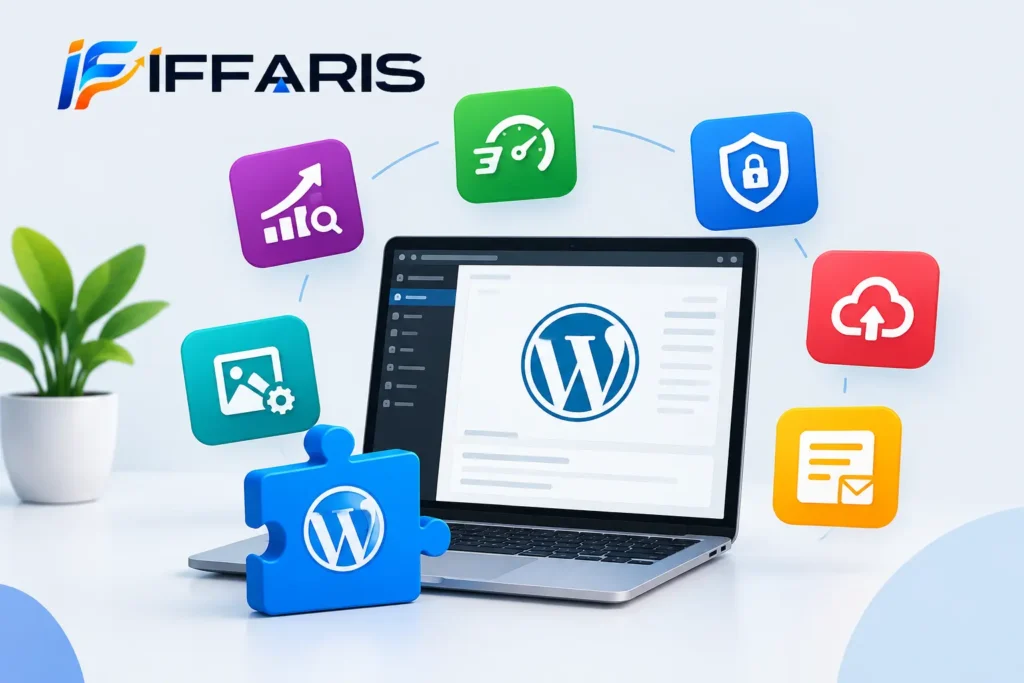
Plugins extend WordPress’s functionality, and a handful of essential ones belong in nearly every WordPress website setup:
- An SEO plugin (like Rank Math or Yoast) to manage meta titles, descriptions, and sitemaps
- A caching plugin to improve page load times
- A security plugin to guard against brute-force attacks and malware
- A backup plugin to protect your work in case something goes wrong
- A contact form plugin if your site needs to collect inquiries
- An image optimization plugin to keep page weight down as you add content
Resist the urge to install every plugin that looks interesting. A cluttered site with dozens of unnecessary plugins is slower, harder to maintain, and more vulnerable to conflicts — all problems that undo the benefits of a careful WordPress website setup. Stick to what your site genuinely needs, and periodically review your plugin list as your site grows.
Setting Up Pages, Menus, and Navigation
With your theme and plugins in place, the next step in WordPress website setup is building out your core pages and navigation. Most sites need, at minimum, a Home page, an About page, a Services or Products page, and a Contact page.
Go to Pages > Add New to create each one, then head to Appearance > Menus to organize them into a clear navigation structure. A logical menu is one of the most overlooked parts of the whole process, yet it has a huge impact on how easily visitors — and search engines — can find their way around your site.
Internal linking between your pages, not just in your main menu but within your content itself, strengthens the structure of your site and helps distribute authority across it. If you’re building out a content-heavy site, our on-page SEO checklist is a helpful companion once your pages are live.
Adding an Online Store or Booking System
If your project needs more than static pages, WordPress website setup can extend into eCommerce or service booking without much extra difficulty. WooCommerce is the most popular plugin for turning a WordPress site into a full online store, complete with product pages, a cart, and checkout. For service-based businesses, booking plugins can add appointment scheduling directly to your site.
These additions sit on top of the core setup you’ve already completed, so it’s worth finishing the basics first and layering in eCommerce or booking functionality once your foundation is solid.
WordPress SEO Setup Basics
No WordPress website setup is complete without basic SEO configuration. Search engines need to understand your site before they can rank it, and a few early steps make a lasting difference.
Start by connecting your site to Google Search Console and submitting your XML sitemap, which most SEO plugins generate automatically. If you’re new to this tool, our guide on how to use Google Search Console walks through the process step by step. Next, configure your permalink structure (covered earlier), write unique meta titles and descriptions for each page, and make sure your robots.txt file isn’t accidentally blocking search engines — our breakdown of robots.txt and SEO explains what to check.
Because WordPress has built-in SEO advantages, many site owners specifically choose it for that reason. Our deeper guide on WordPress SEO covers on-page optimization in more detail, and it pairs well with a broader look at what SEO actually is if you’re still getting familiar with the basics. Understanding how SEO works alongside your WordPress website setup means you won’t have to retrofit optimization later.
It’s also worth reviewing technical fundamentals early. Our technical SEO checklist and this outside resource on technical SEO both cover items worth confirming before you consider your setup finished. Since page speed directly affects both rankings and user experience, checking your Core Web Vitals and general on-page SEO setup shortly after launch is a smart habit to build into your routine.
Security and Backups During Website Setup
Security should never be an afterthought in WordPress website setup. Because WordPress is so widely used, it’s also a common target for automated attacks, which makes a few precautions essential.
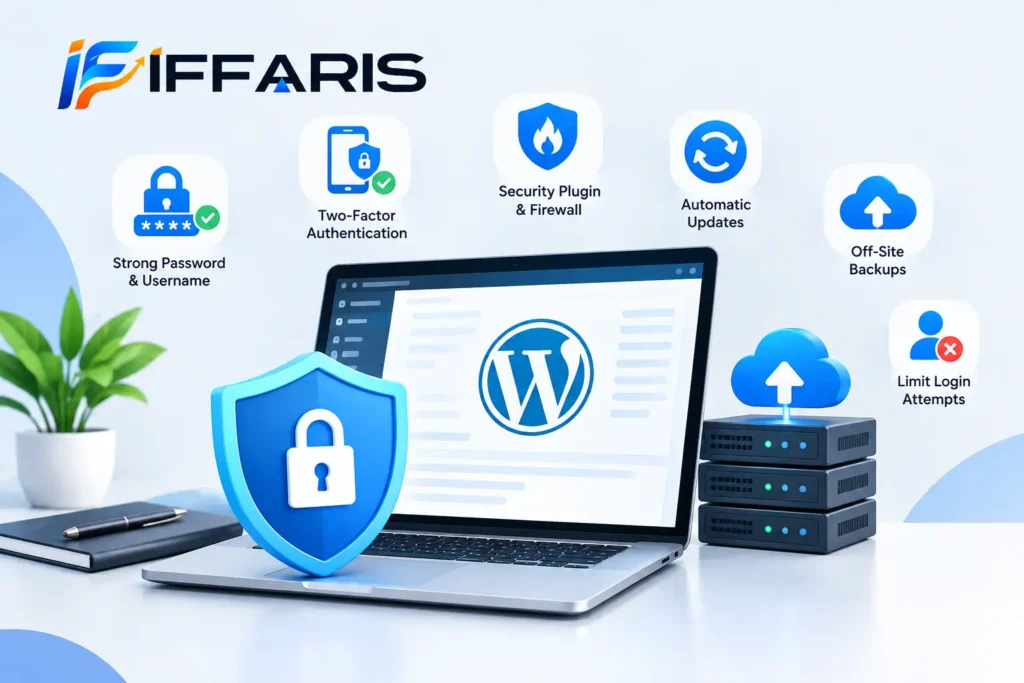
At minimum, your setup should include:
- A strong, unique admin password and username
- Two-factor authentication where possible
- A reputable security plugin with a firewall
- Automatic updates for WordPress core, themes, and plugins
- Scheduled backups stored off-site (not just on your hosting server)
- A limit on login attempts to block brute-force attacks
Treat security as an ongoing part of the process rather than a one-time task. A quick weekly check of updates and backups goes a long way toward keeping your site safe long after the initial WordPress website setup is finished, and it means one bad plugin update or attempted breach won’t cost you weeks of work.
Optimizing for Mobile and Accessibility
Most visitors today will land on your site from a phone, so mobile performance deserves its own attention during setup, not just a quick glance at the end. Preview every page on multiple screen sizes using your theme’s live preview or browser developer tools, and pay close attention to font sizes, button spacing, and image scaling. A design that looks polished on a large desktop monitor can feel cramped or unreadable on a small screen if it wasn’t tested carefully.
Accessibility is worth building in at the same stage. Use descriptive alt text for images, maintain sufficient color contrast between text and backgrounds, and make sure your site can be navigated with a keyboard alone. These practices not only help visitors with disabilities but also tend to align with what search engines reward, since accessible sites are generally easier for both people and crawlers to understand. Folding accessibility checks into your setup routine now is far easier than retrofitting them across dozens of pages later.
Testing and Launching Your Website
Before announcing your site to the world, run through a final checklist to confirm your WordPress website setup is ready. Test every page on both desktop and mobile, click through every menu link, submit your contact form to make sure it delivers, and check that images load correctly across browsers.
Run a speed test and address any major bottlenecks, since a slow site undermines even the most careful setup. Double-check that your site is not still set to “discourage search engines from indexing this site” under Settings > Reading — this single checkbox has derailed more than one launch by accidentally hiding a finished WordPress website setup from Google.
Once everything checks out, you can confidently consider your setup complete and your site live and ready for visitors.
A Quick WordPress Website Setup Checklist
To recap the process in one place, here is a condensed checklist you can run through for any new project:
- Register a domain name and choose a reliable host
- Install WordPress through your host’s installer
- Configure general, permalink, and reading settings
- Choose and install a lightweight, mobile-friendly theme
- Install only the plugins your site genuinely needs
- Build your core pages and set up a clear navigation menu
- Connect Google Search Console and configure basic SEO
- Set up security measures and automated backups
- Test every page, form, and link before launch
- Review and maintain the site regularly after launch
Keeping this checklist handy makes it easy to repeat a clean WordPress website setup for future projects, too.
Common Mistakes to Avoid During WordPress Website Setup
Even experienced site owners make mistakes during setup. Watch out for these common pitfalls:
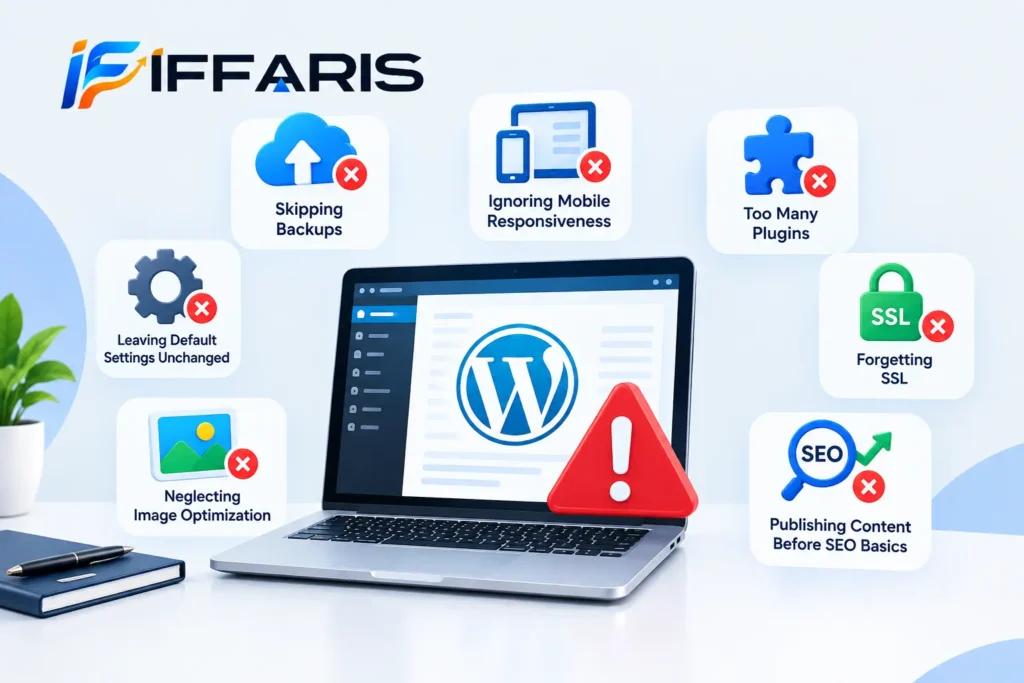
- Skipping backups before making major changes
- Ignoring mobile responsiveness during theme selection
- Installing too many plugins, which slows the site and increases security risk
- Leaving default settings unchanged, especially permalinks and indexing options
- Forgetting SSL, which leaves your site marked as “not secure” in browsers
- Neglecting image optimization, which quietly slows down page speed
- Publishing content before SEO basics are configured, which delays indexing
Avoiding these mistakes during setup will save you significant time compared to fixing them after launch.
Maintaining Your Website After Setup
WordPress website setup doesn’t end at launch — ongoing maintenance keeps your site running smoothly. Update WordPress core, themes, and plugins regularly, monitor uptime, review analytics, and keep an eye on Search Console for crawl errors or security issues.
Treating maintenance as a natural extension of your original WordPress website setup, rather than a separate task you’ll get to eventually, is what separates sites that stay fast and secure from ones that slowly degrade over time. A simple monthly routine — checking updates, reviewing backups, and scanning for broken links — keeps the results of your setup intact for years.
Frequently Asked Questions About WordPress Website Setup
How long does WordPress website setup take? A basic setup can be completed in a few hours, though a fully polished site with custom content often takes several days to a few weeks.
Do I need coding skills for WordPress website setup? No. Modern WordPress website setup relies on themes, page builders, and plugins, so no coding knowledge is required for a functional site.
How much does WordPress website setup cost? Costs vary, but a basic setup with shared hosting, a domain, and a free theme can run as little as $50–$100 per year, with premium themes and plugins adding to that total for a more advanced project.
Can I move my site to better hosting later? Yes. Migrating a WordPress website setup to new hosting is common as sites grow, and many hosts offer free migration assistance to make the switch easier.
Should I hire a professional for WordPress website setup? Many beginners handle the basics themselves, but a professional can save time and avoid mistakes for complex sites, custom designs, or eCommerce functionality.
What’s the difference between a theme and a page builder? A theme controls your site’s overall structure and default styling, while a page builder is a plugin that gives you more granular, visual control over individual page layouts. Many sites during setup use both together.
Is one-click WordPress installation safe to use? Yes, one-click installers from reputable hosts are a standard and secure part of the process, since they install the official WordPress software directly from WordPress.org.
Conclusion
A successful WordPress website setup comes down to careful planning, the right hosting and domain choices, a clean installation process, and sensible configuration of themes, plugins, and SEO settings. None of these steps are difficult on their own, but skipping any of them tends to create extra work later, whether that means a slow-loading homepage, a security scare, or a redesign you could have avoided by getting the foundation right the first time.
By following the steps in this guide, you now have a clear roadmap for completing your own WordPress website setup from start to finish — and a solid foundation to build on as your site grows. Bookmark the checklist above, revisit it the next time you launch a new project, and you’ll find that each subsequent setup gets faster and more predictable than the last.