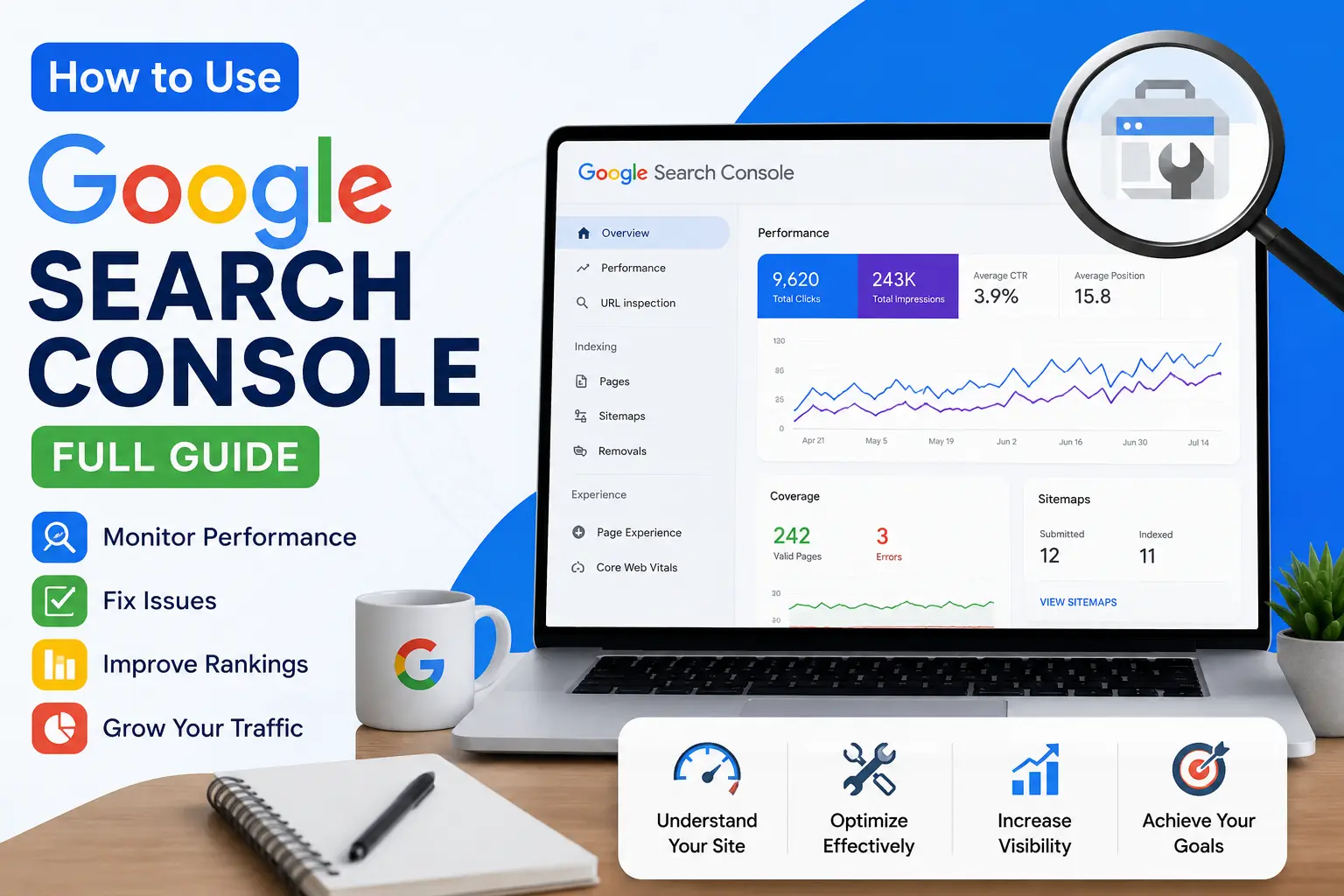
If you publish a website and never check its performance in search results, you’re flying blind. That’s exactly why learning how to use Google Search Console is one of the most valuable skills any website owner, blogger, or SEO beginner can pick up. This free tool from Google shows you exactly how your site behaves in search — what pages rank, what queries bring in traffic, which pages are indexed, and what technical problems are quietly hurting your rankings.
Whether you run a small blog, an e-commerce store, or a local business website, the fundamentals stay the same: Google Search Console gives you a direct line of communication with Google itself. It’s not a third-party estimate or a paid tool guessing at your rankings — it’s data straight from the source. That’s exactly why every serious SEO strategy, content plan, or technical audit starts with a solid grasp of how to use Google Search Console.
In this guide, we’ll walk through everything you need to know about how to use Google Search Console, from setup to advanced reports, so you can start making data-backed decisions for your website today.
Why Learning How to Use Google Search Console Matters
Before jumping into the step-by-step reports, it’s worth pausing on why this skill is worth your time. Many site owners rely purely on guesswork — publishing content and hoping it ranks, without ever checking whether Google can even find or index it properly. Understanding how to use Google Search Console removes that guesswork.
Here’s what changes once you know how to use Google Search Console properly:
- You stop wasting effort on invisible pages. If a page isn’t indexed, no amount of content quality will help it rank. GSC tells you immediately.
- You find quick-win opportunities. Pages ranking on page two with decent impressions are often one small optimization away from a page-one jump.
- You catch technical problems early. Server errors, broken redirects, and crawl issues can silently drain traffic for months if left unchecked.
- You understand real user search behavior. The exact queries people type to find your site are far more valuable than keyword tool estimates.
- You protect your site’s reputation. Security and manual action alerts mean you’re never caught off guard by a sudden ranking drop.
Once these benefits click, it becomes clear that how to use Google Search Console isn’t just a “nice to know” — it’s foundational to running a website that actually performs in organic search.
What Is Google Search Console and Why You Need to Know How to Use It
Google Search Console (GSC) is a free platform provided by Google that lets website owners monitor, maintain, and troubleshoot their site’s presence in Google Search results. Before you learn how to use Google Search Console effectively, it helps to understand what it actually does.
GSC tells you:
- Which pages of your site are indexed by Google
- Which search queries bring visitors to your site
- Your average click-through rate (CTR) and ranking position
- Technical errors that block pages from appearing in search
- Mobile usability issues
- Security problems, like malware or hacked content
- Backlinks pointing to your website
Unlike Google Analytics, which tracks what happens after someone lands on your site, Search Console tracks what happens before — how your site is discovered, crawled, and displayed in search results. That’s why understanding how to use Google Search Console is essential if you care about organic traffic and long-term SEO health. If you’re still new to the fundamentals, our beginner’s guide to what SEO is is a good place to start before diving deeper into Search Console itself.
How to Use Google Search Console: Setting Up Your Account
The first step in learning how to use Google Search Console is creating an account and adding your website as a “property.” Here’s how to do it:
- Go to Google Search Console and sign in with a Google account.
- Click “Add Property.”
- Choose between a Domain property (covers all subdomains and protocols like http/https) or a URL prefix property (covers only the exact URL you enter).
- Enter your website URL and click “Continue.”
Most beginners choose the URL prefix option because it’s simpler to verify, but if you manage multiple subdomains, the domain property gives you a fuller picture. Either way, this step is the foundation of how to use Google Search Console going forward — without a verified property, none of the other reports will work.
How to Use Google Search Console to Verify Your Website
Once you’ve added your property, Google needs proof that you own the site. There are several verification methods:
- HTML file upload – Download a verification file and upload it to your site’s root directory.
- HTML tag – Copy a meta tag and paste it into your homepage’s
<head>section. - Google Analytics – If GA is already installed, you can verify instantly.
- Google Tag Manager – Works similarly if GTM is already set up.
- DNS record – Add a TXT record through your domain registrar (required for domain properties).
If you’re using WordPress, a plugin like Rank Math or Yoast SEO can handle verification automatically through the HTML tag method. Once verified, Search Console starts collecting data — though it may take a few days before reports populate. This is a crucial part of how to use Google Search Console correctly, because incomplete verification means missing or delayed data later on.
How to Use Google Search Console: Understanding the Dashboard
After verification, you’ll land on the main dashboard. Knowing how to use Google Search Console starts with understanding this overview screen, which summarizes:
- Performance – clicks, impressions, and average position over time
- Coverage/Indexing – how many pages are indexed vs. excluded
- Core Web Vitals – page experience and loading performance
- Enhancements – structured data, mobile usability, and other features
- Links – internal and external links pointing to your pages
The left-hand sidebar is where most of the real work happens. Each report answers a different question about your site, and mastering how to use Google Search Console means knowing which report to check for which problem.
How to Use Google Search Console for Performance Reports
The Performance report is arguably the most valuable section for anyone learning how to use Google Search Console, because it shows real search data — not estimates.
Here’s what you’ll find:
- Total clicks – how many times users clicked through to your site from search
- Total impressions – how many times your pages appeared in search results
- Average CTR – the percentage of impressions that turned into clicks
- Average position – your average ranking position for tracked queries
How to Use Google Search Console to Track Clicks, Impressions, CTR, and Position
To get the most out of this report, filter by:
- Queries – see exactly which search terms bring traffic
- Pages – see which URLs perform best or worst
- Countries – understand your geographic audience
- Devices – compare mobile vs. desktop performance
- Search type – Web, Image, or Video
A practical way to use this data: sort by impressions, then look for queries with high impressions but low CTR. These are opportunities — your page is showing up in search, but the title and meta description aren’t compelling enough to earn clicks. This is one of the most actionable parts of how to use Google Search Console for real SEO improvement, because fixing a title tag can boost traffic without writing a single new article.
You can also compare date ranges to see if a recent content update, technical fix, or algorithm change affected your traffic. If you’ve recently improved your site’s technical foundation, our technical SEO checklist is a helpful resource to pair with this analysis.
For example, imagine a blog post ranking at position 14 for a keyword with 2,000 monthly impressions but only a 1% CTR. That’s a page Google already trusts enough to show — it just isn’t earning clicks. Rewriting the title tag and meta description to be more specific and benefit-driven, then monitoring the Performance report over the following weeks, is a practical demonstration of how to use Google Search Console to turn existing visibility into actual traffic without creating a single new page.
How to Use Google Search Console: URL Inspection Tool
The URL Inspection tool lets you check the exact status of any individual page. This is a core part of how to use Google Search Console when troubleshooting why a specific page isn’t ranking or showing up in search at all.
Simply paste any URL from your site into the search bar at the top of Search Console, and it will show you:
- Whether the URL is indexed
- The last crawl date
- Whether the page is mobile-friendly
- Any structured data detected
- Crawl and indexing issues, if present
If a page isn’t indexed, you can click “Request Indexing” directly from this tool. Google will then attempt to crawl and index the page, usually within a few days. Knowing how to use Google Search Console’s URL Inspection tool is especially useful right after publishing new content, since it can help speed up the discovery process instead of waiting for Google to find it naturally.
How to Use Google Search Console for Indexing and Coverage Reports
One of the most important skills in how to use Google Search Console is reading the Indexing (previously called Coverage) report. This report shows which pages are indexed and which are excluded, along with the reason why.
Common statuses you’ll see include:
- Indexed – the page is live in Google’s search results
- Crawled – currently not indexed – Google saw the page but chose not to index it
- Discovered – currently not indexed – Google knows the page exists but hasn’t crawled it yet
- Excluded by ‘noindex’ tag – the page is intentionally blocked from indexing
- Duplicate content without canonical tag – Google found similar pages and isn’t sure which to index
- Server error (5xx) – a technical error prevented crawling
If you’re seeing a high number of excluded or error pages, that’s a signal something needs fixing — whether it’s thin content, broken redirects, or blocked resources. We’ve put together a full breakdown in our Search Console coverage report guide, which walks through how to diagnose and resolve each type of indexing error in more depth.
It’s worth noting that not every “excluded” page is actually a problem. Pages you’ve deliberately noindexed, paginated archive pages, or duplicate parameter URLs are often excluded on purpose, and that’s completely normal. The real skill in how to use Google Search Console here is telling the difference between intentional exclusions and genuine errors that are quietly costing you organic visibility. Reviewing this report monthly, rather than only after a traffic drop, helps you catch small indexing issues before they compound into bigger problems.
How to Use Google Search Console to Submit a Sitemap
A sitemap is an XML file listing all the important pages on your site, and submitting one helps Google discover your content faster. This is a simple but essential piece of how to use Google Search Console correctly.
Here’s how to submit one:
- Go to the “Sitemaps” section in the left sidebar.
- Enter your sitemap URL (usually something like
yourdomain.com/sitemap.xmloryourdomain.com/post-sitemap.xml). - Click “Submit.”
Once submitted, Search Console will show you how many URLs were discovered from the sitemap and how many were successfully indexed. If your CMS uses an SEO plugin, it typically generates this sitemap automatically. Resubmitting isn’t usually necessary after the first time — Google will recheck it periodically — but if you make major structural changes to your site, it’s worth revisiting this step as part of how to use Google Search Console for ongoing maintenance.
How to Use Google Search Console for Core Web Vitals and Page Experience
Page experience signals, including Core Web Vitals, affect how Google ranks your pages. Learning how to use Google Search Console’s Core Web Vitals report helps you catch performance issues before they hurt rankings.
This report groups your URLs into three categories:
- Good – meets Google’s performance thresholds
- Needs improvement – borderline performance
- Poor – fails one or more Core Web Vitals metrics
The three metrics measured are:
- Largest Contentful Paint (LCP) – how fast the main content loads
- Interaction to Next Paint (INP) – how responsive the page feels to user input
- Cumulative Layout Shift (CLS) – how much the page layout shifts during loading
If a group of pages is flagged as “Poor,” Search Console will usually tell you the underlying cause — such as large images, render-blocking scripts, or slow server response times. Fixing these issues is a core part of how to use Google Search Console to protect and improve your site’s rankings over time, since page experience is a confirmed ranking factor.
How to Use Google Search Console to Fix Mobile Usability Issues
With most search traffic coming from mobile devices, Google uses mobile-first indexing — meaning it primarily evaluates the mobile version of your site. That makes mobile usability an unavoidable part of how to use Google Search Console properly.
The Mobile Usability report flags issues like:
- Text too small to read
- Clickable elements too close together
- Content wider than the screen
- Viewport not configured correctly
Each flagged issue links to the specific pages affected, along with guidance on the underlying cause. Regularly checking this report — especially after theme or plugin updates — is a smart habit to build into your process for how to use Google Search Console on an ongoing basis.
How to Use Google Search Console for Links Reports
The Links report shows you who is linking to your site (external links) and how your own pages link to one another (internal links). This is a valuable part of how to use Google Search Console for both link building and site structure analysis.
Under “External links,” you can see:
- Top linking sites
- Top linked pages
- Top linking text (anchor text)
Under “Internal links,” you can see which of your own pages receive the most internal links — a good indicator of which pages Google considers most important on your site. If certain key pages have very few internal links pointing to them, that’s worth fixing, since internal linking helps distribute authority throughout your site. For a deeper strategy on earning quality external links, check out our guide on how to get backlinks and our link building strategies post.
How to Use Google Search Console for Security Issues
No guide on how to use Google Search Console would be complete without mentioning the Security Issues report. If your site is ever hacked, infected with malware, or used for phishing, Google will flag it here — and in serious cases, may show warnings to users in search results or block access entirely.
If an issue appears:
- Read Google’s description of the problem carefully.
- Clean up the affected files or fix the vulnerability with your host or developer.
- Click “Request a Review” once the issue is resolved.
Checking this report periodically, even when you don’t suspect a problem, is good practice. It’s a small but critical part of how to use Google Search Console to protect both your rankings and your visitors.
How to Use Google Search Console: Common Mistakes to Avoid
Even experienced site owners make mistakes when it comes to how to use Google Search Console. Here are a few to watch for:
- Ignoring the Performance report – Many people set up GSC and never check it again. The data is only useful if you act on it.
- Not fixing indexing errors promptly – Excluded or error pages often mean lost traffic opportunities.
- Overlooking mobile usability warnings – Since most traffic is mobile, these issues can hurt rankings significantly.
- Submitting the wrong sitemap – Always double-check the sitemap URL points to the correct, updated file.
- Confusing Search Console with Analytics – GSC shows search behavior; Analytics shows on-site behavior. You need both for a full picture.
Avoiding these mistakes is just as important as understanding how to use Google Search Console’s individual reports.
How to Use Google Search Console Effectively: Pro Tips
Once you’re comfortable with the basics, here are a few advanced tips for how to use Google Search Console more strategically:
- Compare data over time. Use the date comparison feature to spot trends after publishing content, fixing technical issues, or after Google algorithm updates.
- Export data for deeper analysis. You can export Performance and Coverage data to Google Sheets or CSV for custom reporting.
- Filter by query intent. Look for branded vs. non-branded queries separately to understand organic discovery versus direct brand searches.
- Connect Search Console to Google Analytics. This gives you a combined view of search visibility and on-site engagement.
- Set up email alerts. Google will notify you automatically about new indexing errors, security issues, or manual actions.
- Review Core Web Vitals after every major site update. Theme changes, new plugins, or added scripts can quietly hurt page speed.
These habits turn how to use Google Search Console from a one-time setup task into an ongoing part of your SEO workflow — much like maintaining a local SEO strategy or optimizing a Google Business Profile requires continuous attention rather than a single fix.
It also helps to treat Search Console as a diagnostic tool rather than a one-time checklist. Rankings shift, algorithms update, and site changes — a new theme, a migration, or a bulk content edit — can all introduce fresh issues. Building a recurring calendar reminder to review Performance, Coverage, and Core Web Vitals reports is one of the simplest ways to keep your SEO work proactive instead of reactive. For a broader look at how technical health ties into indexing and rankings, our guide on Google Search Console indexing offers additional context worth reading alongside this one.
FAQs About How to Use Google Search Console
Is Google Search Console free to use? Yes. Google Search Console is completely free for any website owner, and there’s no premium version.
How long does it take for data to appear after verifying my site? Typically a few days, though full historical trends can take up to 16 months to build up over time.
Do I need coding knowledge to use Google Search Console? No. Basic use of the dashboard requires no coding, though fixing certain technical issues it flags may require some development help.
Can I use Google Search Console for multiple websites? Yes, you can add and manage as many properties as you need under one Google account.
How often should I check Google Search Console? Weekly is a good habit for most site owners, while larger or actively updated sites may benefit from checking every few days.
What’s the difference between Google Search Console and Google Analytics? Search Console shows how your site performs specifically within Google Search — impressions, clicks, rankings, and indexing status. Analytics shows what visitors do once they’ve already arrived on your site, such as pages viewed, time on site, and conversions. Learning how to use Google Search Console alongside Analytics gives you the full journey, from search visibility to on-site behavior.
Conclusion: How to Use Google Search Console
Learning how to use Google Search Console isn’t just a technical exercise — it’s one of the most direct ways to understand how Google sees your website and to catch problems before they cost you traffic. From verifying your property and submitting a sitemap, to analyzing performance data, fixing indexing errors, and monitoring Core Web Vitals, every report serves a specific purpose in keeping your site healthy in search.
The best way to get comfortable is simply to log in regularly and explore each report with your own data. The more consistently you practice how to use Google Search Console, the more intuitive it becomes — and the more control you’ll have over your website’s visibility, traffic, and long-term SEO performance.