Few things make a site owner’s stomach drop like opening their website and finding a strange redirect, a defaced homepage, or a bright red browser warning. In most cases, the cause is WordPress malware, and the longer it sits on your server, the more damage it does to your rankings, your reputation, and your revenue.
WordPress powers a huge share of the web, which makes it the biggest target for attackers. Automated bots scan millions of sites every day looking for outdated plugins, weak passwords, and misconfigured servers. When they find an opening, they inject malicious code, create hidden admin accounts, and quietly turn your website into a tool for spam, phishing, or fraud. The scary part is that WordPress malware often hides in plain sight, and many owners do not notice it for weeks.
This guide walks you through everything you need to know. You will learn what this threat actually is, how infections happen, the warning signs to watch for, how to scan a site properly, and the exact steps to clean it. You will also learn how to stop reinfection and protect your search visibility along the way. Whether you manage one site or a whole portfolio of client websites, you can use this process to respond quickly and confidently.
If you are still building your foundation, it helps to understand how to set up a WordPress website correctly from day one, because a clean, secure setup prevents many problems before they begin.
What Is WordPress Malware?
WordPress malware is any malicious software, script, or code that gets onto a WordPress website without the owner’s permission and is designed to cause harm. That harm can take many forms: stealing data, redirecting visitors, sending spam email, mining cryptocurrency, injecting hidden links, or giving an attacker permanent remote access to your server.
It helps to think of malware as an umbrella term. Under it you will find backdoors, web shells, ransomware, adware, spyware, redirect scripts, and SEO spam injections. Each type of WordPress malware behaves differently, but they share one goal: using your website for someone else’s benefit.
The key point is that WordPress malware is rarely a single file. Attackers know that site owners will try to clean up, so they scatter copies of the infection across themes, plugins, uploads folders, and even the database. If you delete only the obvious file, the hidden copies will rebuild the damage within hours. That is why a methodical cleanup matters far more than a quick fix.
Why WordPress Sites Are Targeted So Often
WordPress itself is generally well maintained, and the core software receives regular security updates. The weak points are almost always the things around it. Understanding these weak points explains why WordPress malware keeps spreading.
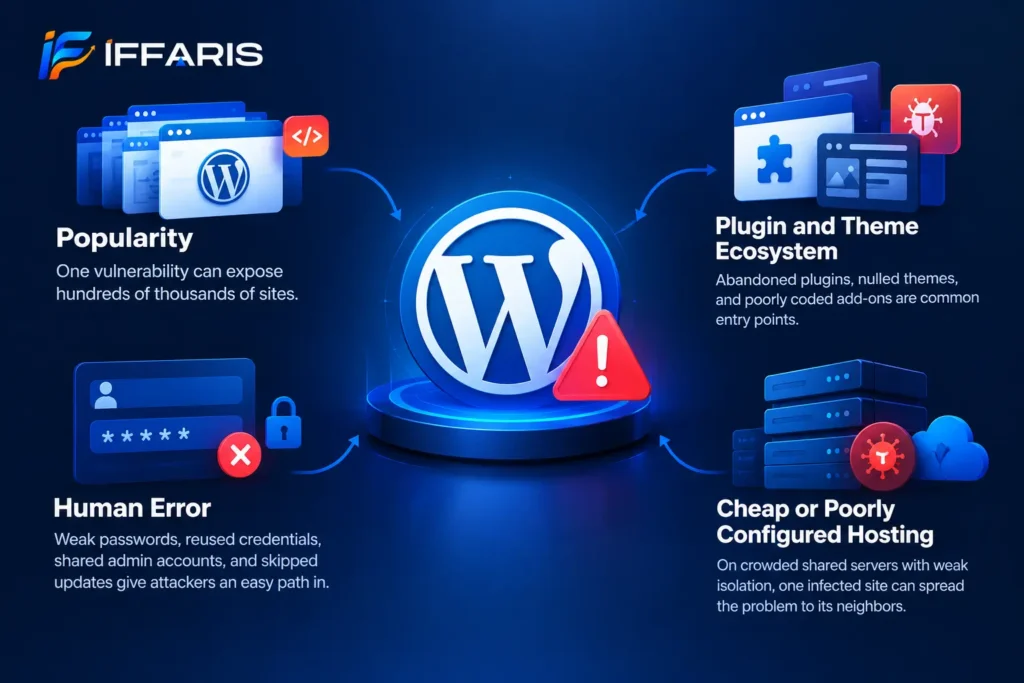
Popularity. Because WordPress runs so many websites, a single vulnerability in a popular plugin can expose hundreds of thousands of sites at once. Attackers love that kind of return on effort.
Plugin and theme ecosystem. Thousands of plugins and themes are built by developers with very different security standards. Abandoned plugins, nulled themes, and poorly coded add-ons are the most common entry points for WordPress malware.
Human error. Weak passwords, reused credentials, shared admin accounts, and skipped updates give attackers an easy path in. No firewall can fully protect a site when the front door is left open.
Cheap or poorly configured hosting. On crowded shared servers with weak isolation, one infected site can spread the problem to its neighbors through shared file permissions.
If you are unsure how to evaluate add-ons before installing them, this guide on how to choose the right WordPress plugins explains what to check, from update history to active installs and support responsiveness.
How WordPress Malware Gets Onto Your Site
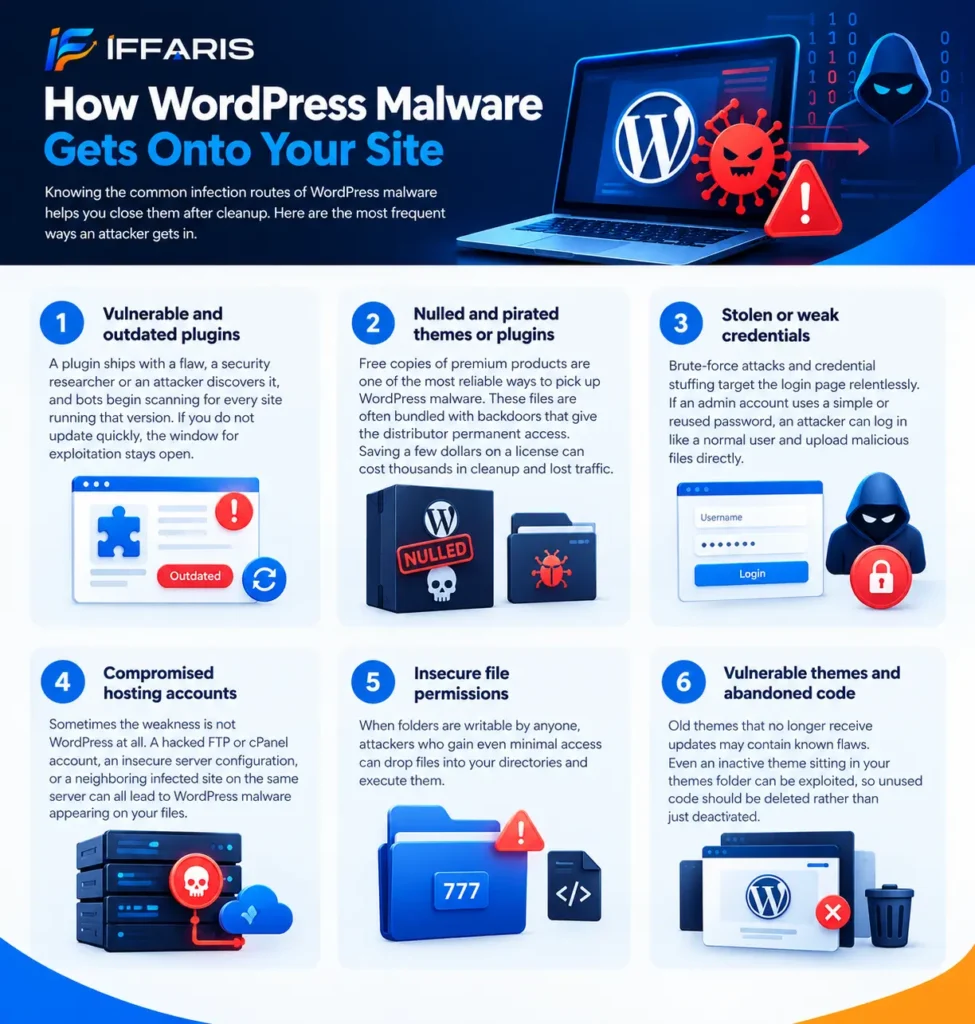
Knowing the common infection routes of WordPress malware helps you close them after cleanup. Here are the most frequent ways an attacker gets in.
Vulnerable and outdated plugins
This is the number one cause. A plugin ships with a flaw, a security researcher or an attacker discovers it, and bots begin scanning for every site running that version. If you do not update quickly, the window for exploitation stays open. WordPress malware infections often begin within days of a public vulnerability disclosure.
Nulled and pirated themes or plugins
Free copies of premium products are one of the most reliable ways to pick up WordPress malware. These files are frequently bundled with backdoors that give the distributor permanent access. Saving a few dollars on a license can cost thousands in cleanup and lost traffic.
Stolen or weak credentials
Brute-force attacks and credential stuffing target the login page relentlessly. If an admin account uses a simple or reused password, an attacker can log in like a normal user and upload malicious files directly.
Compromised hosting accounts
Sometimes the weakness is not WordPress at all. A hacked FTP or cPanel account, an insecure server configuration, or a neighboring infected site on the same server can all lead to WordPress malware appearing on your files.
Insecure file permissions
When folders are writable by anyone, attackers who gain even minimal access can drop files into your directories and execute them.
Vulnerable themes and abandoned code
Old themes that no longer receive updates may contain known flaws. Even an inactive theme sitting in your themes folder can be exploited, so unused code should be deleted rather than just deactivated.
Common Types of WordPress Malware
Different infections call for slightly different cleanup tactics, so it is useful to recognize what you are dealing with.
Backdoors and web shells
A backdoor is a hidden entry point that lets an attacker return even after you change passwords. A web shell is a more powerful version that gives a full file manager and command interface through the browser. This type of WordPress malware is the main reason sites get reinfected.
Redirect malware
Redirect-style WordPress malware sends your visitors, often only those arriving from Google or on mobile devices, to spam, scam, or adult websites. Because the redirect usually does not trigger for the site owner, you may not see it yourself.
SEO spam and pharma hacks
Attackers inject hundreds or thousands of spam pages, usually promoting counterfeit goods, pills, or gambling. Sometimes they cloak the content so only search engine crawlers see it, which quietly destroys your rankings before you notice.
Malicious admin users
Many infections create hidden administrator accounts so attackers can log in at will. These accounts sometimes use names that look legitimate, which makes them easy to overlook.
Cryptominers
This kind of WordPress malware uses your server resources, or your visitors’ browsers, to mine cryptocurrency. The usual symptom is a sudden, unexplained slowdown.
Spam mailers and phishing pages
Some WordPress malware turns your server into an email spam relay or hosts a fake login page that imitates a bank or a well-known brand. This can get your domain and hosting IP blacklisted.
Ransomware and defacement
Less common but very disruptive, these attacks encrypt files or replace your homepage with the attacker’s message.
Warning Signs of a Hacked WordPress Site
Catching WordPress malware early limits the damage. Watch for these symptoms.
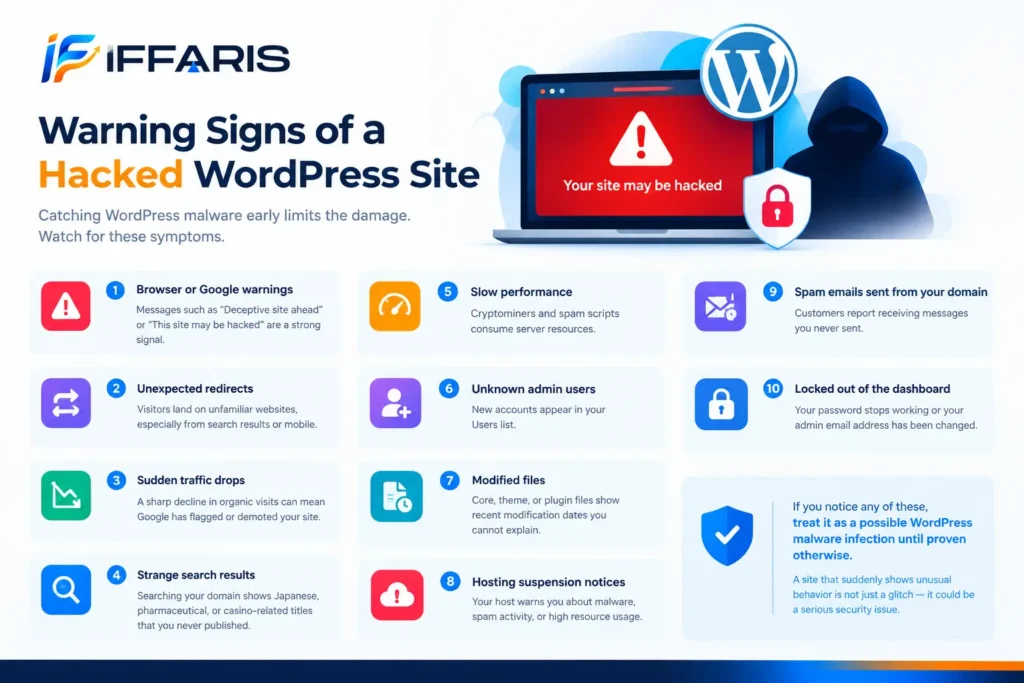
- Browser or Google warnings. Messages such as “Deceptive site ahead” or “This site may be hacked” are a strong signal.
- Unexpected redirects. Visitors land on unfamiliar websites, especially from search results or mobile.
- Sudden traffic drops. A sharp decline in organic visits can mean Google has flagged or demoted your site.
- Strange search results. Searching your domain shows Japanese, pharmaceutical, or casino-related titles that you never published.
- Slow performance. Cryptominers and spam scripts consume server resources.
- Unknown admin users. New accounts appear in your Users list.
- Modified files. Core, theme, or plugin files show recent modification dates you cannot explain.
- Hosting suspension notices. Your host warns you about malware, spam activity, or high resource usage.
- Spam emails sent from your domain. Customers report receiving messages you never sent.
- Locked out of the dashboard. Your password stops working or your admin email address has been changed.
If you notice any of these, treat it as a possible WordPress malware infection until proven otherwise. A site that suddenly feels slow is worth investigating, and it can help to run a website speed test to compare current behavior with your usual baseline.
How to Detect WordPress Malware Step by Step
Detecting WordPress malware should be systematic. A single scan is rarely enough, so combine several methods.
Step 1: Check external reputation tools
Start with the easy checks. Use Google’s Safe Browsing transparency report and your Google Search Console Security Issues report to see whether Google has flagged your domain. If you are new to the tool, this walkthrough on how to use Google Search Console covers the basics. You can also run your URL through free remote scanners that check for known blacklisting and visible injected code.
Remote scanners only see the publicly visible side of WordPress malware, so a clean result does not guarantee a clean site. They are a starting point, not a verdict.
Step 2: Run a server-side security scan
A plugin-based or host-level scanner can inspect the actual files on your server. Reputable security plugins compare your core files against the official WordPress repository, flag suspicious code patterns, and list recently changed files. This is where most WordPress malware gets caught.
Step 3: Verify core file integrity
If you have WP-CLI access, you can check whether your core and plugin files match the official versions:
wp core verify-checksums
wp plugin verify-checksums --all
Any file reported as modified or unexpected deserves a closer look, since that is where WordPress malware usually shows itself. Core WordPress files should never contain custom code.
Step 4: Review users and permissions
Open the Users screen and sort by role. Look for administrators you do not recognize, and for accounts created around the date problems began. Remove anything suspicious and note it for your records.
Step 5: Search for suspicious code patterns
Attackers often hide WordPress malware using obfuscation. Common red flags include functions such as eval, base64_decode, gzinflate, str_rot13, and long strings of random-looking characters. These functions have legitimate uses, so their presence alone is not proof of infection, but unexpected use inside theme files, the uploads folder, or wp-config.php is a serious warning.
Pay special attention to the following locations:
- The
wp-content/uploadsfolder, which should contain media, not PHP files - The
wp-content/mu-pluginsfolder, where attackers hide code because those plugins load automatically and do not appear on the normal plugins page - The
functions.phpfile of your active theme - The root
.htaccessfile, which can be edited to create redirects - Files with recent modification dates or odd names that imitate core files
Step 6: Inspect the database
WordPress malware does not live only in files. Check your posts and options tables for injected script tags, hidden iframes, and spam links. Look closely at the wp_options table for unfamiliar entries and at scheduled tasks that you did not create.
Step 7: Check your search presence
Search for site:yourdomain.com and scan the results for pages you never created. Also review your index status. The Search Console coverage report can reveal thousands of unexpected URLs that point to a spam injection. For a deeper look at how indexing issues show up, the guide on Google Search Console indexing is a useful companion.
How to Remove WordPress Malware Safely
Once you have confirmed WordPress malware on your site, work calmly and in order. Rushing leads to missed files and reinfection.
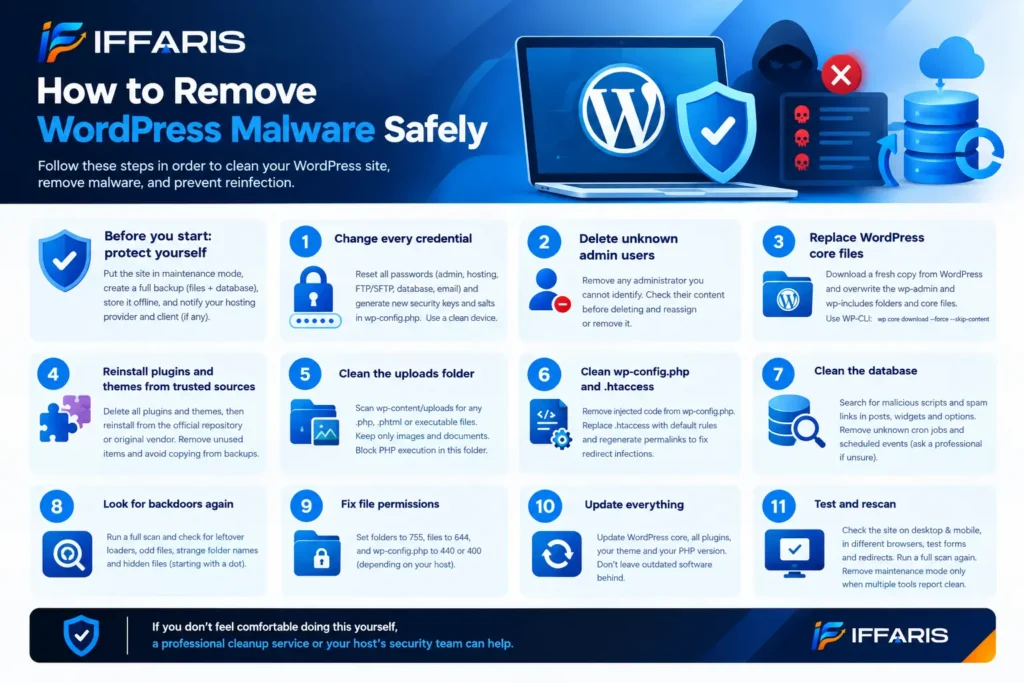
Before you start: protect yourself
First, put the site into maintenance mode or restrict access so visitors are not exposed. Then create a full backup of the files and database, even though they are infected. You want a copy to investigate and a fallback in case something goes wrong during cleanup. Store that backup offline and never restore it directly to production later.
Next, tell your hosting provider. Many hosts can help identify the entry point, check server logs, and isolate the account. If you manage client websites, notify the client early and be transparent about the plan.
Step 1: Change every credential
Reset the passwords for every WordPress admin account, your hosting control panel, FTP and SFTP users, the database user, and any connected email accounts. Do this from a clean computer, since a compromised device can leak the new passwords. Also regenerate the security keys and salts in wp-config.php, which logs out every active session, including the attacker’s.
Step 2: Delete unknown admin users
Remove any administrator you cannot identify. Before deleting, check what content they created so you can reassign or remove it.
Step 3: Replace WordPress core files
The cleanest way to deal with WordPress malware in core files is to replace them entirely. Download a fresh copy of WordPress from the official site, then overwrite the wp-admin and wp-includes folders and the root core files. With WP-CLI, this can be done with one command:
wp core download --force --skip-contentLeave your wp-config.php and the wp-content folder alone for now, and review them manually.
Step 4: Reinstall plugins and themes from trusted sources
Delete every plugin and theme, then reinstall fresh copies from the official repository or the original vendor. Do not copy files from the infected backup. This single step eliminates a large share of hidden WordPress malware because attackers rely on modified plugin files. Delete anything you no longer use, including inactive themes and old plugins.
If you rely on premium products, download new copies directly from the developer’s account area, never from a third party.
Step 5: Clean the uploads folder
Scan wp-content/uploads for any file with a .php, .phtml, or similar executable extension, and delete it. Images and documents belong in this folder; scripts do not. Consider adding a rule that blocks PHP execution in the uploads directory to prevent this in the future.
Step 6: Clean wp-config.php and .htaccess
Open wp-config.php and compare it with a clean template. Remove anything that looks injected at the top or bottom of the file. For .htaccess, replace it with the default WordPress rules, then regenerate your permalinks from the dashboard. Many redirect infections are fixed with this simple step.
Step 7: Clean the database
Search your tables for injected scripts and spam links. Remove malicious entries from posts, widgets, and options. If you are not comfortable editing the database directly, ask a professional, because a wrong deletion can break the site. Also remove unknown scheduled events, since attackers use cron jobs to recreate deleted files.
Step 8: Look for backdoors again
After the first cleanup pass, scan the entire site once more and search for leftover loaders. Backdoors are the reason one round of WordPress malware removal is often not enough. Check for odd files in the root folder, strange names in plugin directories, and hidden files that start with a dot.
Step 9: Fix file permissions
As a general guideline, folders should be set to 755 and files to 644, with wp-config.php locked down more tightly, often 440 or 400 depending on your host. Correct permissions limit what an attacker can modify if they get in again.
Step 10: Update everything
Update WordPress core, every remaining plugin, your theme, and your PHP version. Running outdated software after a cleanup is like fixing a broken window and leaving the door unlocked.
Step 11: Test and rescan
Check the site on desktop and mobile, in different browsers, and while logged out. Test forms, checkout, and redirects. Then run a full scan again. Only when multiple tools report clean should you remove maintenance mode.
If you would rather not handle this yourself, a managed cleanup service or your host’s security team can do it for you. Many professional services guarantee that the cleanup includes backdoor removal.
Restoring From a Backup: When It Works and When It Does Not
Restoring a clean backup sounds like the fastest fix, and sometimes it is. But it only works if you know the backup was created before the infection. If the WordPress malware was already present when the backup was taken, restoring simply brings it back.
Use this approach carefully. Work out the date of the first compromise by checking file modification times and server logs. Restore a backup from before that date, then immediately update every component and change every password. Restoring without fixing the original vulnerability invites the same attack again.
Cleaning Up Your Search Presence After a Hack
Removing WordPress malware is only half the job. If Google flagged your site, you need to tell it that the problem is solved.
Request a security review. In Google Search Console, open the Security Issues report and submit a review request after you have fully cleaned the site. Explain what you removed and what you did to prevent a repeat. Reviews can take from a few days to about a couple of weeks.
Remove spam URLs. If your site was filled with spam pages, make sure they now return a proper “gone” response and submit a fresh sitemap. Check your robots.txt setup to confirm that you have not accidentally blocked important pages while cleaning up.
Check your backlinks and anchors. Attackers sometimes link to spam from other compromised sites. Monitor new links for anything unnatural.
Watch your rankings and traffic. Recovery is usually gradual. After a clean-up, track performance closely using the Search Console performance report to see impressions and clicks return to normal.
A hacked site can lose trust quickly. Following a sound technical SEO checklist after recovery makes sure that nothing else is quietly holding your pages back.
How to Prevent WordPress Malware in the Future
Prevention costs far less than recovery from WordPress malware. Build these habits into your routine and the risk of another WordPress malware attack falls dramatically.
Keep everything updated
Enable automatic updates for security releases, and review plugin and theme updates at least weekly. Fast patching closes the window that attackers rely on.
Use strong authentication
Require long, unique passwords stored in a password manager. Turn on two-factor authentication for every administrator. Limit login attempts and consider changing or protecting the default login URL.
Follow the principle of least privilege
Give users only the access they need. Most team members do not need an administrator role. Use editor or author accounts for content work and keep admin access to a minimum.
Install a firewall and security plugin
A web application firewall blocks malicious requests before they reach WordPress. Combine it with a scanner that monitors file changes and alerts you to suspicious activity. Do not install several overlapping security plugins, because they can conflict and slow your site. If speed is a concern, review these tips on WordPress website speed so your protection does not become a performance problem.
Maintain reliable, off-site backups
Schedule automatic daily or weekly backups and store them away from your server. Keep multiple restore points and test a restore occasionally. A backup you have never tested is only a hope.
Disable file editing in the dashboard
Add the following line to wp-config.php to stop anyone, including an attacker with a stolen admin login, from editing theme and plugin code through the dashboard:
define( 'DISALLOW_FILE_EDIT', true );Use secure hosting
Choose a host with account isolation, server-level malware scanning, up-to-date PHP versions, and quick support. Good hosting is one of the most underrated defenses against WordPress malware.
Enforce HTTPS and secure headers
An SSL certificate encrypts traffic between your visitors and your site. Security headers add another layer of protection against clickjacking and script injection.
Remove what you do not use
Every unused plugin, theme, and user account is a potential entry point. Delete them rather than simply deactivating them.
Monitor and log activity
Activity logs show who changed what and when. If something goes wrong, these records make it much easier to find the point of entry. For a broader view of defensive habits, the guide on how to secure a website offers a practical checklist you can apply to any platform, and the article on website security for maintenance routines shows how to make protection part of regular upkeep.
A Simple Monthly Security Routine
Consistency beats intensity when fighting WordPress malware. Instead of a big annual audit, follow a short routine.
- Weekly: Review updates, check security alerts, and glance at your user list.
- Monthly: Run a full scan, test a backup restore, review plugin lists for abandoned items, and check Google Search Console for security or coverage warnings.
- Quarterly: Audit user roles, rotate passwords, check file permissions, and review your hosting setup.
This is the same discipline described in a good website maintenance checklist, and it takes less time than most owners expect. Teams that follow a regular schedule find WordPress malware earlier, often before visitors or search engines notice anything.
Common Mistakes to Avoid During Cleanup
Even experienced site owners make errors under pressure. Avoid these.
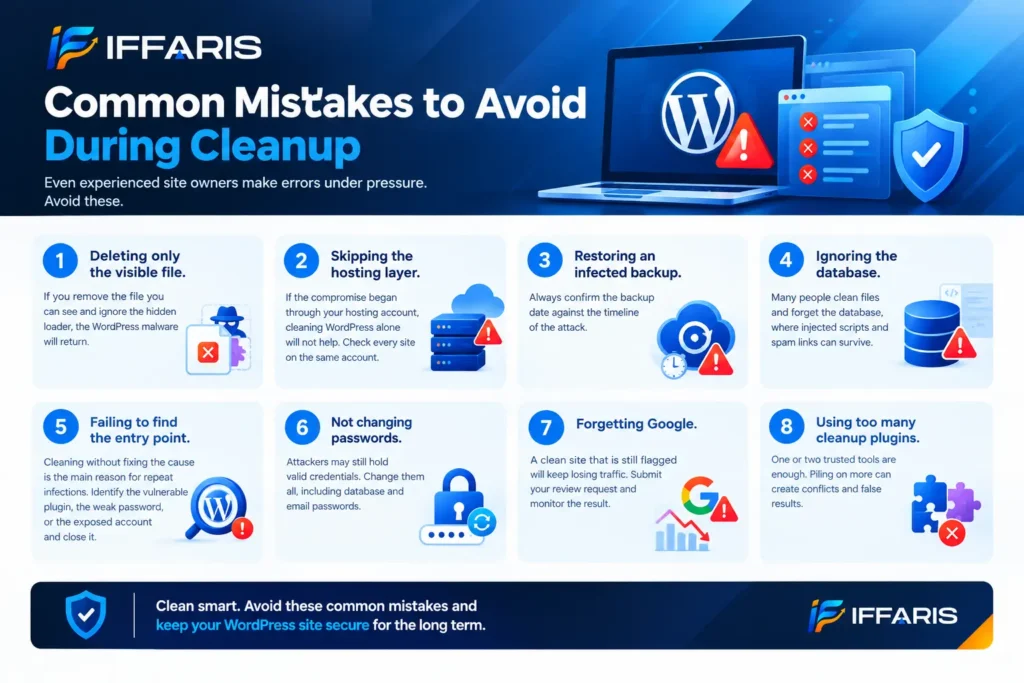
Deleting only the visible file. If you remove the file you can see and ignore the hidden loader, the WordPress malware will return.
Skipping the hosting layer. If the compromise began through your hosting account, cleaning WordPress alone will not help. Check every site on the same account.
Restoring an infected backup. Always confirm the backup date against the timeline of the attack.
Ignoring the database. Many people clean files and forget the database, where injected scripts and spam links can survive.
Failing to find the entry point. Cleaning without fixing the cause is the main reason for repeat infections. Identify the vulnerable plugin, the weak password, or the exposed account and close it.
Not changing passwords. Attackers may still hold valid credentials. Change them all, including database and email passwords.
Forgetting Google. A clean site that is still flagged will keep losing traffic. Submit your review request and monitor the result.
Using too many cleanup plugins. One or two trusted tools are enough. Piling on more can create conflicts and false results.
When to Call a Professional
You can handle many cases of WordPress malware yourself if you are comfortable with files and the database. But some situations call for experts: a business-critical store processing payments, repeated reinfections, infected multi-site networks, signs that customer data was exposed, or hosting-level compromises.
If customer data may have been affected, you may also have legal and notification duties depending on your location and the type of data involved. A professional can document what happened and advise on next steps. For agencies, having a defined incident response plan, including who contacts the client, who cleans, and who verifies, turns a crisis into a manageable task.
Real-World Example: A Typical Infection Timeline
Consider a small service business with a WordPress site that has not been updated in months. A plugin on the site has a known flaw. A bot finds it, uploads a small web shell into the uploads folder, and uses it to create a hidden administrator account. Over the next two weeks, the attacker injects spam pages in a foreign language and adds a redirect that triggers only for mobile visitors arriving from Google.
The owner notices nothing at first. Then calls from customers drop and a friend mentions being sent to a strange website. Traffic falls sharply, and Google flags the domain.
The cleanup follows the steps above: credentials changed, hidden admin removed, core and plugins replaced, the web shell and the loader deleted, database cleaned, and permissions fixed. The owner submits a review in Search Console and sets up automatic updates, two-factor authentication, and weekly backups. Traffic returns gradually over the following weeks.
This WordPress malware pattern repeats daily across thousands of sites. The details change, but the lesson is the same: WordPress malware thrives on neglect, and a small amount of routine maintenance prevents most of it.
Frequently Asked Questions
Can WordPress malware hurt my SEO?
Yes. Search engines may flag your site, show warnings in results, or remove pages entirely. Spam content and redirects also damage trust and rankings. Proper recovery and a review request help restore visibility, and good fundamentals such as a clear website URL structure make the recovery easier to monitor.
How long does it take to remove WordPress malware?
A simple case of WordPress malware can be cleaned in a few hours. A deep, multi-layered infection with backdoors in files and the database can take a day or more. The Google review period adds a few days afterward.
Can a plugin remove all malware automatically?
Security plugins can detect and remove many known threats, but they are not perfect. Manual verification, fresh core files, and fixing the entry point are still necessary for a complete cleanup.
Will changing my password stop the infection?
No. Passwords matter, but backdoors and hidden admin users let attackers return anyway. Password changes are one step in a full process.
How do I know the malware is really gone?
To confirm WordPress malware is gone, rescan with multiple tools, verify file integrity, review users, check Google Search Console, and monitor your logs for several weeks. A single clean scan is not proof.
Is a free SSL certificate enough to protect my site?
SSL protects data in transit, but it does not stop WordPress malware from entering through vulnerable code. Treat it as one layer in a larger plan.
Should I delete my website and start over?
Rarely. A careful cleanup is almost always enough. Rebuilding is only worth considering when the site is small and heavily compromised, and even then you must secure the new site properly.
Final Thoughts
WordPress malware is stressful, but it is not unbeatable. The core idea is simple: detect the infection thoroughly, remove every layer of it, close the door that let it in, and tell Google the problem is solved. Rushed cleanups leave WordPress malware backdoors behind, while methodical ones end the problem for good.
Make prevention a habit. Keep software updated, use strong authentication, trust only reputable plugins, back up often, and review your site on a schedule. If you manage a business website or client sites, build security into your regular maintenance rather than treating it as an emergency task.
If you are building or rebuilding a site right now, start with a secure foundation and a thoughtful WordPress website design process, then protect your investment with ongoing care. A secure site earns visitor trust, keeps search engines happy, and keeps your business running without nasty surprises.