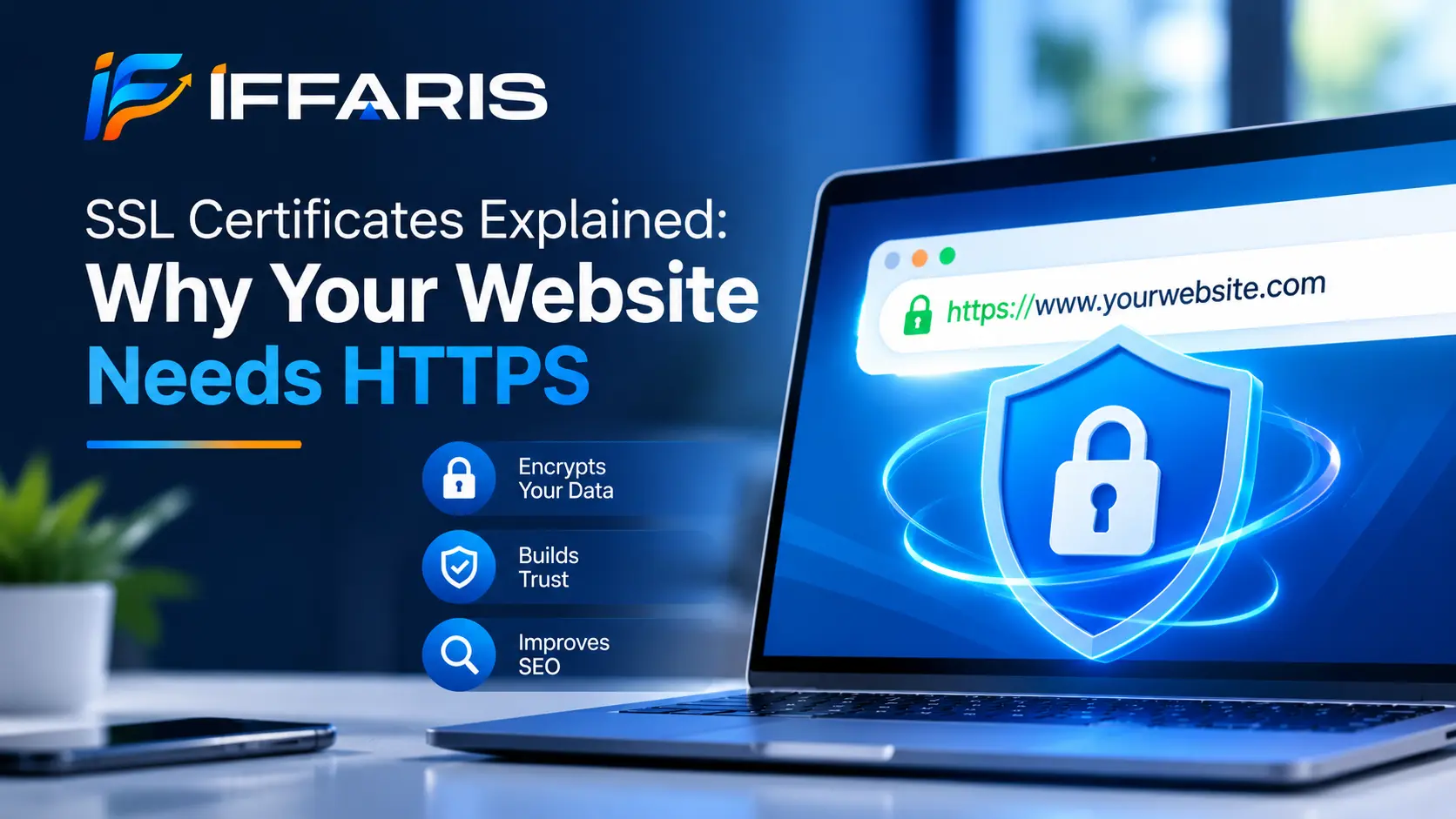
If you have ever landed on a page with a “Not Secure” warning in the address bar, you already know how quickly trust disappears online. Visitors leave, shoppers abandon their carts, and search engines take notice. The technology behind the small padlock icon that prevents all of this is an SSL certificate.
It is a small data file that proves your website’s identity and switches on an encrypted connection between your server and every visitor’s browser. Without an SSL certificate, everything a visitor types into your site, from a contact form message to a credit card number, can travel across the internet as readable text that anyone on the network might intercept.
In this guide, you will learn what an SSL certificate is, how it works behind the scenes, how it differs from TLS and HTTPS, and why every website needs one in 2026. We will also look at the types of SSL certificates, how to choose the right one, how to install it, how to migrate to HTTPS without losing rankings, and how to fix the most common errors. Whether you run a blog, a local service business, or an online store, this article will help you make a confident decision.
What Is an SSL Certificate?
An SSL certificate is a digital credential issued by a trusted organization known as a Certificate Authority (CA). It binds a cryptographic key to your domain name and, in some cases, to your verified business identity. When a browser connects to your website, it checks the SSL certificate to confirm two things: that the site really belongs to the domain shown in the address bar, and that the connection can be encrypted safely.
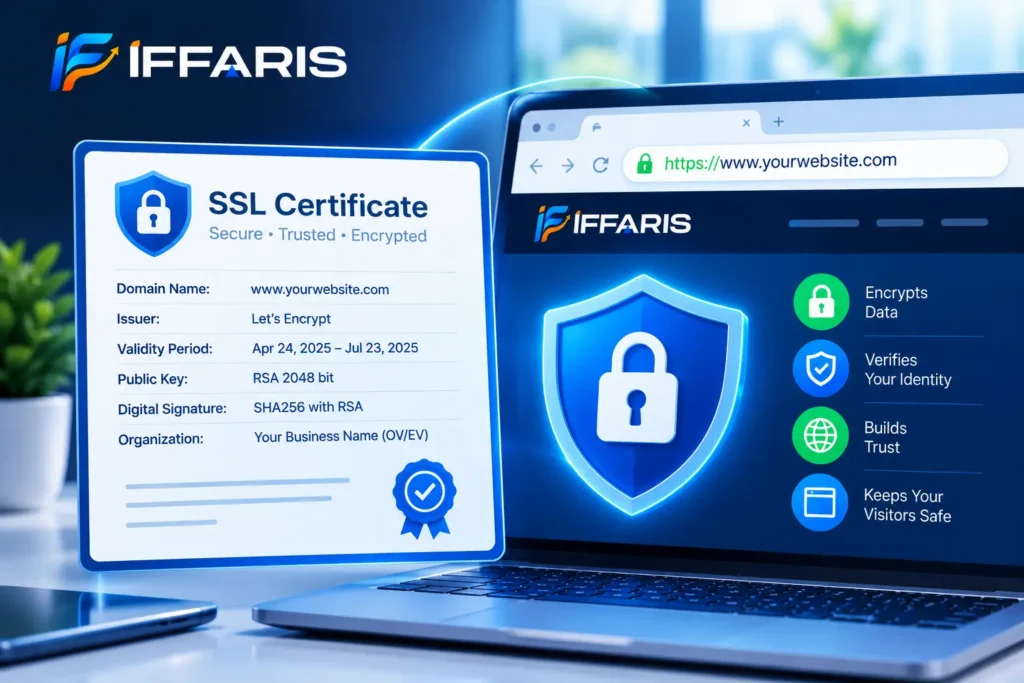
SSL stands for Secure Sockets Layer. Strictly speaking, SSL is an older protocol that was replaced years ago by Transport Layer Security (TLS). The name stuck, however, and almost everyone, including hosting companies and providers, still says “SSL certificate” when they technically mean a TLS certificate. We will use the familiar term throughout this guide.
Every certificate contains several pieces of information:
- Domain name: the website or websites the certificate protects.
- Issuer: the Certificate Authority that verified and signed it.
- Validity period: the start and expiry dates.
- Public key: the key browsers use to start an encrypted session.
- Digital signature: proof that the CA vouches for the document.
- Organization details: included only at higher validation levels.
A helpful way to picture an SSL certificate is as a digital passport. A passport proves who you are because a trusted government checked your details before issuing it. In the same way, a browser trusts your website because a trusted CA checked it and signed its credential.
How Does an SSL Certificate Work?
The process takes only milliseconds, but several steps happen every time someone opens your site over HTTPS. This sequence is called the TLS handshake.
- The browser requests a secure connection. It contacts your server and asks it to identify itself.
- The server presents its SSL certificate. Along with the certificate, it sends its public key.
- The browser validates the certificate. It checks that the certificate has not expired, that it matches the domain name, and that it was signed by a CA the browser trusts.
- A session key is created. Using the public key, both sides agree on a temporary secret key that only they know.
- Encrypted communication begins. Everything sent from this point on is scrambled with the session key, so anyone eavesdropping sees meaningless data.
Two kinds of encryption cooperate here. Asymmetric encryption, which uses a public and private key pair, is used briefly at the start to verify identity and exchange secrets safely. Symmetric encryption, which uses one shared session key, then takes over because it is much faster for transferring page content, images, and form data.
The private key never leaves your server. That is why protecting it matters as much as installing the certificate itself.
What Happens If the Browser Does Not Trust the Certificate?
If any check fails, the browser interrupts the visit with a full-page warning such as “Your connection is not private.” Most visitors will not click through. This is why a misconfigured or expired SSL certificate can hurt a business almost as much as having no protection at all.
SSL vs. TLS vs. HTTPS: What Is the Difference?
These three terms are often mixed up, so here is a quick breakdown.
- SSL is the original protocol, developed in the 1990s. Every version of it is now considered insecure and has been disabled in modern browsers.
- TLS is the modern successor. TLS 1.2 and TLS 1.3 are the versions in everyday use, and TLS 1.3 is both faster and more secure.
- HTTPS is simply HTTP running on top of a TLS connection. It is the secure version of the protocol your browser uses to load web pages.
So when you obtain an SSL certificate, you are really getting a credential that enables TLS encryption, which in turn lets your site load over HTTPS. The certificate is the proof of identity, TLS is the encryption method, and HTTPS is the result visitors see in the address bar.
Why Your Website Needs HTTPS
Some site owners still believe HTTPS is only for online stores. That idea is outdated. Here is why every website, including a simple brochure site or blog, needs an SSL certificate.

1. It Protects Your Visitors’ Data
Contact forms, login pages, newsletter signups, and search boxes all collect personal information. On an HTTP site, that information is exposed. An SSL certificate encrypts it in transit, which stops attackers on public Wi-Fi, compromised routers, or shared networks from reading or altering it.
2. It Builds Trust and Credibility
Browsers label HTTP pages as “Not Secure,” especially when a form is present. That label alone can cost you leads. A padlock signals that you take privacy seriously, and for new visitors who do not know your brand, that small signal makes a real difference. Installing a certificate is one of the cheapest trust upgrades available.
3. It Supports Your SEO
Google confirmed HTTPS as a ranking signal back in 2014. It is a lightweight signal compared with content quality or backlinks, but it works as a tiebreaker when pages are otherwise similar. More importantly, secure sites avoid the warnings, bounce rates, and browser restrictions that damage engagement.
If you are new to how rankings work, our guides on what is SEO and how Google Search works explain where technical factors like HTTPS fit in. A valid certificate also appears on every good technical SEO checklist.
4. It Prevents Tampering and Injection
Without encryption, third parties can modify pages on their way to the visitor, injecting ads, tracking scripts, or malicious code. HTTPS protects the integrity of your content, and a properly installed certificate means that what you publish is what visitors actually receive. Combine this with regular scanning for threats. Our guide to WordPress malware shows what infections look like when they slip through.
5. It Unlocks Modern Web Features
Many browser features, including geolocation, service workers, and progressive web apps, require a secure connection. The faster HTTP/2 and HTTP/3 protocols also depend on HTTPS in practice. Without an SSL certificate, your site cannot use them.
6. It Supports Compliance
Regulations and standards such as GDPR and PCI DSS expect appropriate protection of personal and payment data in transit. Running a site with forms and no SSL certificate can put you out of step with those expectations. Check the legal requirements that apply to your business and region.
7. Partners and Platforms Expect It
Payment gateways, advertising platforms, and many third-party APIs refuse to work with insecure sites. Valid HTTPS is now a baseline requirement for doing business online.
Types of SSL Certificates by Validation Level
Not every certificate verifies the same amount of information. The validation level determines how thoroughly the CA checks your identity before issuing it.
Domain Validated (DV) Certificates
A DV certificate is the fastest and cheapest option. The CA only confirms that you control the domain, usually through an email, a DNS record, or a file upload. Issuance takes minutes, and many are free. A DV SSL certificate gives you full encryption, which is why it suits blogs, portfolios, and most small business websites.
Organization Validated (OV) Certificates
An OV certificate requires the CA to verify your organization’s legal existence, which can take a day or more. Company details appear in the certificate information. This type of certificate suits businesses that want to show visitors a verified identity behind the site.
Extended Validation (EV) Certificates
EV certificates involve the strictest vetting. In the past, browsers displayed a green address bar or company name for EV, but modern browsers no longer give it special prominence. The encryption is identical to DV and OV, so an EV SSL certificate now mainly benefits banks, large enterprises, and regulated industries that need the strongest identity assurance on record.
Important: All three levels provide the same strength of encryption. The difference lies in identity verification, not in the security of the connection itself.
Types of SSL Certificates by Domain Coverage
Beyond validation, you also choose how many domains a certificate covers.
- Single-domain: secures one exact hostname, such as www.example.com.
- Wildcard: secures a domain and all of its first-level subdomains, such as blog.example.com and shop.example.com. A wildcard SSL certificate is cost-effective when you run many subdomains.
- Multi-domain (SAN/UCC): secures several different domain names under a single credential, which is handy for agencies and businesses with multiple brands.
How to Choose the Right SSL Certificate
Use these questions to narrow down your decision.
- What does your site do? A blog or small business site is usually fine with DV. A store handling payments might prefer OV for the added identity details.
- How many domains and subdomains do you have? Choose single, wildcard, or multi-domain coverage accordingly.
- Does your host already provide one? Many hosts include a free certificate with automatic renewal. If yours does, you may not need to buy anything.
- Which authority issues it? Look for a CA trusted by all major browsers and devices, with reliable support and broad compatibility.
- What is your budget? Free options such as Let’s Encrypt are legitimate and widely trusted. Paid options add warranties, support, and OV or EV validation. The best option is the one that matches your needs and renews without effort.
Free vs. Paid SSL Certificates
Free certificates provide the same encryption as paid ones. They are typically DV only, have shorter lifetimes (Let’s Encrypt issues 90-day certificates), and rely on automation for renewal. Paid certificates add validation options, warranties, and dedicated support. For most small websites, a free certificate is enough. Businesses that need organization validation or want extra assurance for customers will find a paid plan worthwhile.
How to Get and Install an SSL Certificate
The exact steps depend on your hosting setup, but the general process looks like this.
Step 1: Check What Your Host Offers
Log in to your hosting control panel and look for a section called SSL/TLS, Security, or Let’s Encrypt. Most modern hosts can issue and install an SSL certificate with a single click.
Step 2: Generate a CSR (Manual Installs)
If you are buying from a CA, you will need a Certificate Signing Request (CSR), generated on your server or in your control panel. It contains your public key and domain information. The private key is created at the same time, so store it securely.
Step 3: Complete Validation
Prove that you control the domain, and provide organization details for OV or EV. After validation, the CA issues your certificate.
Step 4: Install the Certificate
Upload the certificate and any intermediate certificates (the chain) to your server. Missing intermediates are a common cause of errors on some devices.
Step 5: Redirect HTTP to HTTPS
Set up site-wide 301 redirects so every HTTP URL points to its HTTPS version. Without redirects, visitors and search engines can still reach the insecure version.
Step 6: Test Everything
Open your site in a browser and click the padlock to view the certificate details. Use a free tool such as the SSL Labs server test to check for chain problems, protocol versions, and configuration weaknesses.
If you are launching a new site, building HTTPS in from the start is the easiest route. Our WordPress website setup guide walks through the full process, including security basics.
Switching to HTTPS Without Hurting Your SEO
Installing an SSL certificate is only half the job on an existing site. Migration mistakes can cause duplicate content, lost rankings, and broken pages. Follow this checklist.
- Use 301 redirects from every HTTP URL to the matching HTTPS URL, and avoid redirect chains.
- Update internal links so they point directly to HTTPS URLs. Clean, consistent links also reinforce a sound website URL structure.
- Fix mixed content. This happens when an HTTPS page loads images, scripts, or stylesheets over HTTP. Browsers block or warn about these resources, which breaks the padlock. Search your theme, widgets, and database for old “http://” references.
- Update canonical tags to the HTTPS version. You can learn more in this guide to canonical tags in SEO.
- Update your sitemap and robots.txt with HTTPS URLs. Review these robots.txt best practices to make sure nothing is blocked by accident.
- Add the HTTPS property in Google Search Console and submit your new sitemap. If you are unsure how, read how to use Google Search Console, then monitor the Search Console coverage report for indexing problems after the switch. For a deeper look at index issues, see this guide to Google Search Console indexing.
- Update third-party profiles, ads, email signatures, social links, and your Google Business Profile to use HTTPS.
- Enable HSTS once everything works. HTTP Strict Transport Security tells browsers to always use HTTPS for your domain. Test carefully before enabling it, since mistakes are hard to undo.
Does HTTPS slow your site down? Not in any noticeable way. TLS 1.3 reduces handshake overhead, and HTTPS unlocks HTTP/2 and HTTP/3, which often make pages faster. After migrating, run a website speed test and review these WordPress website speed tips to confirm that performance holds up.
Common SSL Certificate Errors and How to Fix Them
Even a correctly purchased certificate can cause errors if it is installed or maintained badly. Here are the problems you are most likely to meet.
Certificate Expired
Every SSL certificate has an expiry date. When it passes, browsers display a warning to every visitor. Fix it by renewing and installing the new certificate, and prevent it with automatic renewal and calendar reminders.
Name Mismatch (ERR_CERT_COMMON_NAME_INVALID)
The domain in the address bar does not match the names listed on the certificate. This often happens when you forget the www version or a subdomain. Reissue the certificate so it includes every hostname you use.
Incomplete Certificate Chain
The server presents the certificate but not the intermediate certificates. Some browsers cope, while others do not. Install the full chain provided by your CA.
Mixed Content Warnings
The page loads on HTTPS but pulls some resources over HTTP. Update every resource URL to HTTPS, or remove the resource.
Self-Signed or Untrusted Certificates
A self-signed SSL certificate is one that nobody else vouches for, so browsers reject it on public websites. Replace it with one issued by a trusted CA.
Outdated Protocols or Weak Ciphers
Servers that still allow TLS 1.0 or 1.1 trigger warnings and security failures. Update the server configuration to support TLS 1.2 and TLS 1.3 only.
Redirect Loops After Installing HTTPS
These are often caused by conflicting redirect rules in a plugin, a CDN, and the server. Pick one source of truth for redirects and disable the rest.
SSL Certificate Best Practices
Getting HTTPS live is the first step. Keeping it healthy is the ongoing one.
- Automate renewals. Industry rules keep shortening the maximum lifetime of certificates, so manual renewals are increasingly risky. Choose a host or CA that automates them.
- Monitor expiry dates. Use an uptime or monitoring service that alerts you at least 30 days ahead.
- Protect your private key. Restrict file permissions and never email or share it. If it may have been exposed, reissue the SSL certificate immediately.
- Use strong keys. RSA 2048-bit or ECDSA keys are the modern standard.
- Keep software updated. Server software, your CMS, themes, and plugins all affect your security. Our WordPress plugin selection guide can help you avoid risky add-ons, and this overview of how to secure a website covers protections that go beyond encryption.
- Add layers of security. HTTPS protects data in transit, but it does not stop malware, weak passwords, or vulnerable plugins. Pair it with firewalls, backups, two-factor authentication, and routine checks from a website maintenance checklist.
- Audit regularly. Include HTTPS checks in your on-page SEO checklist reviews: padlock status, mixed content, redirects, and canonical tags.
Common Myths About SSL Certificates
Myth: “A padlock means the site is safe.” The padlock only means the connection is encrypted and the domain is verified. Phishing sites can also install a certificate, so always judge a website on more than the icon.
Myth: “Only e-commerce sites need HTTPS.” Every public website benefits from it, for the sake of trust, SEO, and privacy.
Myth: “HTTPS makes my site slow.” Modern TLS is efficient and is often paired with faster protocols that improve load times.
Myth: “Free certificates are less secure.” The encryption strength is identical. The difference lies in validation level and support. A free SSL certificate from a trusted CA is perfectly secure.
Myth: “I install it once and forget it.” Every certificate expires and needs renewal, so treat it as part of regular maintenance.
Frequently Asked Questions
What is an SSL certificate in simple words?
An SSL certificate is a digital file that proves your website’s identity and enables encrypted connections. You can recognize it by the padlock icon and the HTTPS prefix in the address bar.
Do I need an SSL certificate for a small website?
Yes. Even a basic website with a contact form collects personal data, and browsers flag HTTP pages as not secure. A free certificate from your host is usually enough to get started.
How much does an SSL certificate cost?
Prices range from free for DV options such as Let’s Encrypt to several hundred dollars per year for OV, EV, or wildcard options. Many hosting plans include one at no extra charge.
How long does it take to install an SSL certificate?
With a one-click host installer, it can be live in minutes. Manual installation of a DV certificate usually takes under an hour, while OV and EV validation may add a few days.
Does an SSL certificate improve Google rankings?
HTTPS is a confirmed but lightweight ranking signal. Its bigger benefit is indirect: better trust, fewer warnings, and lower bounce rates.
Can one SSL certificate cover multiple websites?
Only a multi-domain certificate can cover several different domains, and a wildcard certificate covers one domain plus its subdomains. A standard single-domain option cannot.
What happens when an SSL certificate expires?
Browsers show a security warning, and many visitors will leave. Renew and install the new certificate as soon as possible, and set up automatic renewal to avoid a repeat.
Quick HTTPS Readiness Checklist
Before you move on, confirm the essentials are in place:
- Your SSL certificate is valid, issued by a trusted CA, and covers both the www and non-www versions of your domain.
- Automatic renewal is switched on, and expiry alerts go to an email address that someone actually reads.
- Every HTTP URL redirects to its HTTPS version with a single 301 hop.
- No mixed content warnings appear on key pages such as the homepage, contact page, and checkout.
- The SSL certificate chain passes an external test with no errors or weak protocol warnings.
- HTTPS URLs are used in your sitemap, canonical tags, internal links, and Search Console property.
If you can tick every item, your setup is in better shape than a surprising number of live websites.
Conclusion
An SSL certificate is no longer an optional extra. It protects your visitors’ data, builds trust, supports your SEO, unlocks modern web features, and keeps your site in good standing with browsers, partners, and regulators. Whether you choose a free DV option from your host or a paid OV certificate for a growing business, the important thing is to install it correctly, redirect every URL to HTTPS, and keep it renewed.
Start today by clicking the padlock on your own site. If it is missing, expired, or showing warnings, follow the steps in this guide to fix it. Once your SSL certificate is working, build on that foundation with a strong technical SEO checklist and ongoing security maintenance, and your website will be safer, faster, and easier for both people and search engines to trust.