If you have ever opened your search console coverage report and felt a jolt of panic at a red number, you already know why the search console coverage report matters so much. This single report tells you, page by page, whether Google can actually find, crawl, and index the content you worked hard to publish. Ignore it, and pages quietly disappear from search results without warning. Understand it, and you gain one of the most powerful diagnostic tools available to any website owner or SEO professional.
In this guide, we’ll walk through what the search console coverage report is, why it exists, what each status means, and — most importantly — how to fix every common error you’re likely to encounter. By the end, you’ll be able to open your search console coverage report and read it with confidence instead of confusion.
What Is the Search Console Coverage Report?
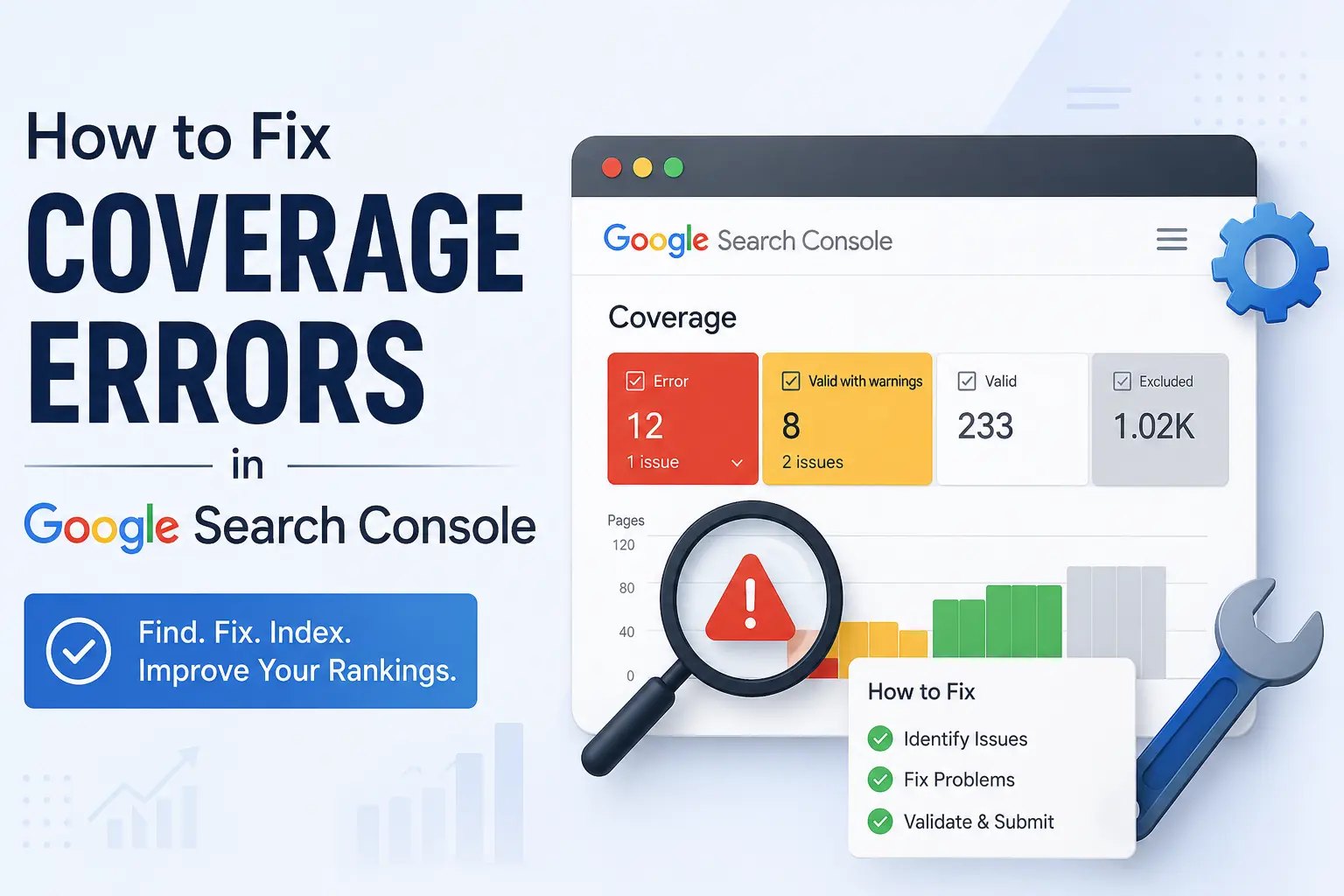
The search console coverage report is a built-in feature inside Google Search Console that shows how Google’s crawlers are interacting with every URL on your website. Instead of guessing whether a page is indexed, it gives you a clear breakdown sorted into four buckets: Error, Valid with warnings, Valid, and Excluded.
Each URL that Google has discovered on your domain — whether through your sitemap, internal links, or external links pointing in from other sites — gets categorized inside the search console coverage report. That means it isn’t just a list of problems; it’s a full map of how Google actually sees your entire website, page by page, at any given moment.
For anyone managing local service business websites, content blogs, or e-commerce stores, the search console coverage report is arguably the single most important report inside the entire Search Console dashboard. Rankings mean nothing if a page was never indexed in the first place, and this is exactly where you find out whether that’s happening. It sits at Indexing > Pages in the current version of Search Console, though many long-time users still call it by its older name, the Coverage report.
Why the Search Console Coverage Report Matters for SEO
Search engines cannot rank what they cannot index, and they cannot index what they cannot crawl. That simple chain is exactly why the search console coverage report deserves a permanent spot in your weekly SEO checklist. A page can have perfect on-page optimization, strong keyword targeting, and great internal links, but if Google flags it as excluded or errored, none of that optimization work will ever appear in search results.
Here are the core reasons the search console coverage report should never be ignored:
- It reveals crawl budget waste, showing you when Google is spending time on low-value or duplicate URLs instead of the pages that actually drive revenue.
- It catches technical mistakes early, such as accidental noindex tags or blocked resources, before they cause serious ranking losses.
- It shows indexing trends over time, so you can see whether your site’s visibility with Google is improving or declining month over month.
- It helps you validate fixes, since Google lets you resubmit a batch of URLs directly from the tool once you believe an issue has been resolved.
- It surfaces structural problems, like thin content or duplicate pages, that might otherwise go unnoticed until traffic has already dropped.
If you already publish structured SEO content — for example, guides like our local SEO guide — pairing that content strategy with regular checks of your indexing status ensures your effort actually reaches the search results page instead of getting stuck in limbo. Content and technical health work together; one without the other rarely produces lasting results.
Understanding the Categories Inside the Search Console Coverage Report
Before you can fix anything, you need to understand how Google organizes information inside the search console coverage report. There are four primary statuses, and each tells a different story about the health of your site.
1. Error
This is the most urgent category. These are URLs that Google tried to index but could not, usually because of a technical blocker like a server error, a redirect problem, or a robots.txt restriction. Every error listed here should be treated as a priority fix, especially if it affects a page you rely on for traffic or conversions.
2. Valid with Warnings
Pages in this section are indexed, but something about them raises a flag. The most common warning is “Indexed, though blocked by robots.txt,” which is a confusing but fixable situation we’ll cover shortly. Warnings won’t necessarily hurt you today, but they’re worth resolving before they escalate.
3. Valid
This is the status you want to dominate your dashboard. It means the page was successfully crawled and is eligible to appear in search results. A high proportion of valid pages relative to your total sitemap count is generally a strong sign of technical health.
4. Excluded
Excluded pages aren’t necessarily a problem. The search console coverage report uses this bucket for pages that were intentionally left out — duplicate content, redirected URLs, or pages you marked as noindex on purpose. However, some excluded reasons, like “Crawled – currently not indexed,” genuinely need attention because they represent content Google chose not to include.
Understanding these four buckets is the foundation for interpreting every number you see. Once you know what each status means, the search console coverage report stops feeling like a wall of red flags and starts feeling like an organized, actionable to-do list.
Consider a practical example: a local electrician’s website publishes twenty new service-area pages in a single month. Two weeks later, the search console coverage report shows fifteen pages as Valid, three as “Crawled – currently not indexed,” and two flagged with a robots.txt block left over from a staging site migration. Without checking the report, the business owner would have no idea that four pages out of twenty were essentially invisible to search traffic, no matter how well they were written or how many keywords they targeted.
Common Errors and How to Fix Them
Now for the practical part. Below are the most frequent issues you’ll find inside the search console coverage report, along with clear, step-by-step fixes for each one.
Server Error (5xx)
This error appears in the search console coverage report when Googlebot requested a page and your server failed to respond correctly, usually due to overload, misconfiguration, or downtime during the crawl attempt.
How to fix it:
- Check your hosting uptime logs to confirm whether the server was down during the crawl window that Google flagged.
- Review your server response codes using a tool like Screaming Frog or your browser’s developer console.
- If you’re on shared hosting, consider whether traffic spikes are causing timeouts, and talk to your host about resource limits or upgrading your plan.
- Once resolved, use the “Validate Fix” button inside the search console coverage report to prompt Google to recrawl the affected URLs.
Redirect Error
A redirect error shows up in the search console coverage report when Googlebot follows a redirect chain that is too long, forms a loop, or leads to a broken destination page.
How to fix it:
- Map out your redirect chains and shorten anything with more than two hops between the original URL and its final destination.
- Fix redirect loops by ensuring URL A points to URL B, and URL B does not point back to URL A.
- Update your internal links so they point directly to the final destination URL instead of an old, already-redirected one.
- Resubmit the corrected URLs through Search Console once the redirects are cleaned up and tested.
Submitted URL Blocked by Robots.txt
This is one of the most common issues flagged in the search console coverage report, and it usually comes from an overly aggressive robots.txt rule written during development and never removed.
How to fix it:
- Open your robots.txt file and search for “Disallow” rules that might be unintentionally blocking important folders or file types.
- Use the Robots.txt Tester tool in Search Console to confirm which specific rule is causing the block.
- Remove or adjust the disallow rule for any page you actually want indexed and visible in search.
- Recheck the coverage data after a few days to confirm the block has cleared and the page moved to Valid.
Submitted URL Marked “Noindex”
If a page you submitted through your sitemap is intentionally or accidentally tagged with a noindex directive, the search console coverage report will flag it under this error.
How to fix it:
- Inspect the page’s HTML head section for a
<meta name="robots" content="noindex">tag. - If you’re on WordPress, check your SEO plugin’s settings (Rank Math, Yoast, etc.) for a per-page or category-level noindex toggle that may have been switched on by mistake during a bulk update.
- Remove the noindex tag if the page should be indexed, then request indexing again through the URL Inspection tool.
- Confirm the change reflects correctly in the search console coverage report within a few days to a couple of weeks.
Submitted URL Not Found (404)
This error means the search console coverage report tried to crawl a URL listed in your sitemap, but the page no longer exists at that address.
How to fix it:
- Remove the dead URL from your sitemap.xml file so it stops being resubmitted with every crawl.
- If the page has a relevant replacement, add a 301 redirect from the old URL to the new one instead of leaving it as a dead end.
- Update any internal links across your site that still point to the removed page.
- Regenerate your sitemap and resubmit it so the search console coverage report reflects your current, accurate URL list.
Submitted URL Seems to Be a Soft 404
A soft 404 happens when a page returns a “200 OK” status code but the content looks empty, thin, or like an error page to Google’s algorithms. The search console coverage report flags these because they confuse crawlers about whether the page is genuinely meant to exist.
How to fix it:
- Add substantial, unique content to thin pages so they no longer resemble an error page in structure or word count.
- If the page genuinely has no content and should not exist, return a proper 404 or 410 status code instead of a fake 200.
- Avoid generic “no results found” pages that return a success code paired with an empty body.
Duplicate Without User-Selected Canonical
When multiple URLs on your site show nearly identical content, the search console coverage report lists them under this exclusion because Google could not confidently determine which version should be treated as the primary, rankable one.
How to fix it:
- Add a self-referencing canonical tag to your preferred version of each page.
- Consolidate near-duplicate pages into a single, stronger page wherever it makes sense for users.
- Use 301 redirects for old duplicate URLs that no longer need to exist as separate pages.
- Watch the search console coverage report over the following weeks to confirm Google adopts the canonical you selected.
Crawled – Currently Not Indexed
This status inside the search console coverage report means Google visited the page but decided, for now, not to add it to the index — often due to content quality, thinness, or relevance concerns compared to competing pages.
How to fix it:
- Strengthen the page with more original, in-depth content that clearly satisfies the underlying search intent.
- Improve internal linking so the page receives stronger authority signals from other pages on your site.
- Check for overlap or duplication with other pages on your own domain that may be competing for the same query.
- Be patient; Google frequently revisits pages after meaningful content or link improvements, and the search console coverage report will update to reflect the change once it does.
Discovered – Currently Not Indexed
This means Google knows the URL exists but hasn’t yet crawled it, often due to crawl budget prioritization on larger or newer domains. The search console coverage report shows this frequently on very large sites or newly launched domains.
How to fix it:
- Improve your site’s overall crawl efficiency by fixing wasted crawl budget elsewhere, such as broken links, redirect chains, or duplicate parameter-based URLs.
- Strengthen internal linking so important pages are easier for Googlebot to discover and prioritize quickly.
- Submit high-priority URLs manually through the URL Inspection tool to nudge Google toward crawling them sooner rather than waiting for a natural crawl cycle.
Step-by-Step Workflow for Fixing Coverage Errors
Here is a repeatable process for handling issues inside the search console coverage report every time you sit down to review it.
- Open the search console coverage report under Indexing > Pages inside your Search Console property.
- Sort by severity, starting with the Error tab since these represent pages completely excluded from search results.
- Click each error type to see the full list of affected URLs grouped by cause.
- Diagnose the root cause using the URL Inspection tool for a live test of how Googlebot currently sees that specific page.
- Apply the fix based on the error type, following the specific steps outlined in the sections above.
- Validate the fix using the “Validate Fix” button, which tells Google to recrawl the corrected pages and update your report.
- Monitor progress over the following one to two weeks, since validation is rarely instant and depends on how often Google crawls your site.
- Repeat regularly, ideally checking your dashboard at least once a week for active sites and once a month for smaller, stable sites that rarely change.
Following this workflow consistently turns the search console coverage report from a source of anxiety into a routine maintenance task, similar in spirit to running through a technical SEO checklist before every major site update.
How to Monitor the Report Over Time
Fixing a one-time issue is only half the job. The real value of the search console coverage report comes from tracking trends, not just individual errors as they pop up.
- Set a recurring calendar reminder to review the search console coverage report weekly, especially if you publish new content frequently.
- Watch the trend line, not just the current number. A search console coverage report showing a slow, steady decline in valid pages over several weeks often signals a deeper technical issue worth investigating right away.
- Compare against your sitemap count. If your sitemap lists 200 URLs but the search console coverage report shows only 150 as valid, that gap tells you exactly how much indexing work remains before your site is fully covered.
- Export the data periodically so you can compare month-over-month changes in a spreadsheet, which is especially useful for agencies managing multiple client sites at once.
- Cross-reference with Google Analytics to see whether pages marked valid are actually generating organic traffic, since being indexed alone never guarantees visibility or clicks.
Sites that treat the search console coverage report as an ongoing habit, rather than a one-time fire drill, consistently maintain healthier indexing rates and recover from technical issues far faster than sites that only check in once rankings have already dropped.
Tools That Complement the Coverage Report
While the search console coverage report is the primary source of truth for indexing status, a few additional tools make diagnosis and prevention much easier.
- URL Inspection Tool: Built directly into Search Console, this shows a live, real-time view of how Googlebot renders and evaluates a specific page, which is useful for confirming a fix before waiting for the full report to update.
- Screaming Frog or Sitebulb: Desktop crawlers that mimic Googlebot’s behavior, helping you catch server errors, redirect chains, and broken links before Google ever finds them.
- Google Analytics or GA4: Useful for cross-referencing indexed pages against actual organic sessions, since a page can be technically valid yet still receive little to no real traffic.
- Rank Math or Yoast SEO: WordPress plugins that manage canonical tags, noindex settings, and sitemap generation, all of which directly influence what appears in the search console coverage report.
Combining these tools with a disciplined review of the search console coverage report gives you both the diagnostic depth and the day-to-day visibility needed to keep a site healthy at scale.
Best Practices to Prevent Future Coverage Errors
Fixing issues after they appear is necessary, but preventing them in the first place saves far more time and protects your rankings before they’re ever put at risk. Here are habits worth building into your regular workflow.
- Keep your sitemap clean. Only include canonical, indexable URLs, and remove old or redirected pages promptly so your data stays accurate and trustworthy.
- Audit robots.txt after every major site change. A single misplaced disallow rule can silently block entire sections, and you may not notice until the search console coverage report flags it weeks later.
- Standardize your canonical tags across templates so duplicate content issues are minimized long before they ever reach the search console coverage report.
- Avoid thin or auto-generated pages that risk being flagged as soft 404s or excluded as low-value content by Google’s quality systems.
- Fix broken internal links regularly, since these waste crawl budget and can indirectly contribute to more “Discovered – currently not indexed” entries over time.
- Coordinate with your development team before major migrations, redesigns, or CMS changes, since these are the most common triggers for a sudden spike in errors across the entire report.
- Document your fixes as you go, noting the date, the affected URLs, and the resolution applied, so future audits of the search console coverage report are faster and you can spot recurring patterns instead of solving the same issue repeatedly.
Small agencies and in-house teams that build these habits into their monthly routine tend to spend far less time firefighting and far more time on the content and link-building work that actually moves rankings forward.
If your website covers a specific local service niche, pairing consistent technical maintenance with strong topical coverage — similar to what we outline in our Google Search Console guide on TradeScaleHub — gives you both the technical foundation and the content depth needed for sustainable, long-term rankings.
Frequently Asked Questions
How often should I check the search console coverage report? For active websites publishing new content regularly, checking weekly is ideal. For smaller, stable sites, a monthly review is usually sufficient to catch anything meaningful.
How long does it take for fixes to reflect in the search console coverage report? After clicking “Validate Fix,” Google typically takes anywhere from a few days to a couple of weeks to fully recrawl and update the status. Larger sites with more pages may take longer to fully process.
Why does it show fewer indexed pages than my sitemap? This usually means some submitted URLs are being excluded for reasons like duplication, thin content, or crawl prioritization. Reviewing each excluded category will tell you exactly why those pages were left out.
Can I ignore the Excluded section entirely? Not entirely. Some excluded reasons are intentional and safe to ignore, such as pages you deliberately noindexed on purpose. Others, like “Crawled – currently not indexed,” represent missed opportunities worth addressing.
Does fixing coverage errors guarantee better rankings? No. The search console coverage report only confirms that a page is eligible to be indexed and shown in search results. Rankings still depend on content quality, relevance, backlinks, and your overall SEO strategy.
Is the Coverage report the same thing as the Pages report? Essentially, yes. Google renamed and reorganized the original Coverage report into the current Pages report under the Indexing section, but the underlying data and error categories remain largely the same.
What’s the difference between crawling and indexing in the search console coverage report? Crawling is Google visiting and downloading a page’s content, while indexing is the separate decision to store that page and make it eligible to appear in search results. A page can be crawled without ever being indexed, which is exactly what the “Crawled – currently not indexed” status represents.
Final Thoughts
The search console coverage report is not just a technical dashboard buried in Search Console settings — it’s a direct line of communication between your website and Google’s crawlers. Every error, warning, and exclusion inside it is Google telling you something specific about how it currently sees your site.
By learning to read this report, diagnosing each error type correctly, and building a consistent monitoring habit, you protect the SEO investment you’ve already made in your content and technical setup. Pages that are properly crawled and indexed have a real chance to rank; pages buried in coverage errors never will. Make the search console coverage report a regular part of your SEO routine, and you’ll catch problems long before they cost you meaningful traffic.