A slow site quietly costs you visitors, leads, and rankings. Every site owner eventually asks the same question: how fast is my website, really? The quickest way to find out is a website speed test. A website speed test loads your page from a remote server, records how long each part takes, and reports the results in numbers you can act on.
In this guide, you will learn what a website speed test measures, which tools to use, how to read the report, and what to fix first. Whether you run a small blog, an online store, or a local service business, a regular website speed test is one of the cheapest and most useful checkups you can do. Let’s start with the basics.
What Is a Website Speed Test?
A website speed test is an automated check that measures how quickly your web page loads and becomes usable. The tool requests your page, downloads every file it needs, such as HTML, CSS, JavaScript, images, and fonts, and times each step along the way.
Think of it like a health screening for your site. A doctor does not guess whether you are healthy; they measure. In the same way, a website speed test replaces opinions like “my site feels slow” with data like “my main image takes 4.2 seconds to appear.”
Most tools produce three things:
- A score or grade that summarizes overall performance.
- Timing metrics that show when content appears and when the page responds to clicks.
- Recommendations that point to the files and settings slowing you down.
A good website speed test does not just tell you that something is wrong. It shows you where the delay happens, so you can fix the cause instead of guessing.
Why a Website Speed Test Matters for SEO and Revenue
Speed is not just a technical detail. It affects how people behave and how search engines treat your pages.
Speed and user experience
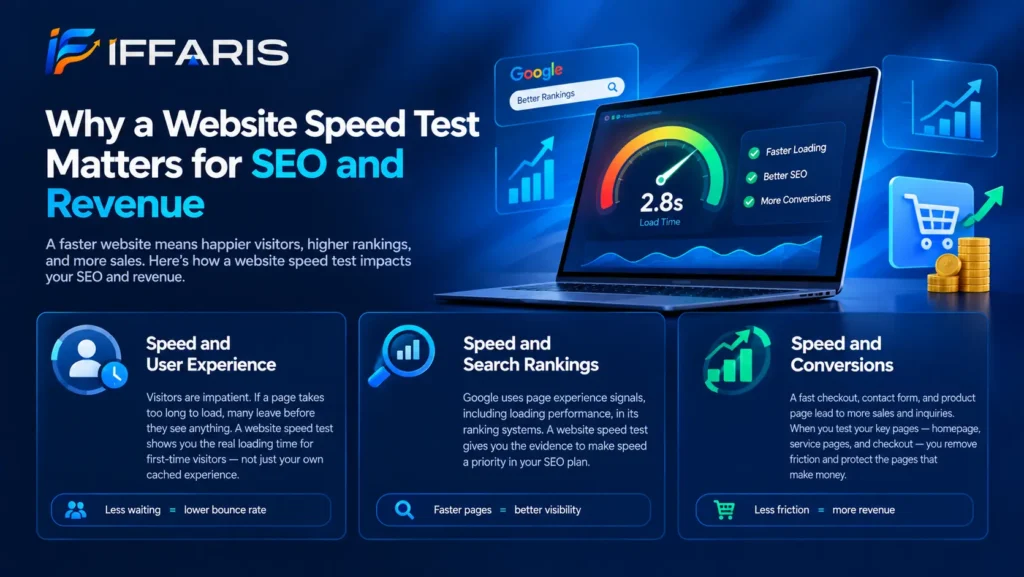
Visitors are impatient. If a page takes too long to show something useful, many people leave before they read a single word. Every extra second of waiting increases the chance of a bounce. Running a website speed test shows you exactly how long a first-time visitor waits, which is often longer than the owner realizes because your own browser has cached files from earlier visits.
Speed and search rankings
Google uses page experience signals, including loading performance, as part of its ranking systems. Speed alone will not push a weak page to the top, but between two similar pages, the faster one has an advantage. If you want to understand how these signals fit into the bigger picture, read our explanation of how Google search works. A website speed test gives you the evidence you need to make speed a priority in your SEO plan.
Speed and conversions
A fast checkout, a quick contact form, and a smooth product page all lead to more sales and more inquiries. A slow page creates friction at the exact moment someone is ready to act. When you run a website speed test on your most important pages, such as your homepage, service pages, and checkout, you protect the pages that make money.
For a deeper look at how performance and rankings connect, this guide on website speed and SEO explains the relationship in practical terms.
Key Metrics a Website Speed Test Reports
Different tools use different names, but most reports share a handful of core measurements. Knowing them helps you read any website speed test without confusion.
Largest Contentful Paint (LCP)
LCP measures how long it takes for the largest visible element, usually a hero image or main heading, to appear. Google considers an LCP of 2.5 seconds or less to be good. This is often the headline number in a website speed test, because it reflects what the visitor actually sees.
Interaction to Next Paint (INP)
INP measures how quickly your page responds when someone clicks, taps, or types. A good INP is 200 milliseconds or less. Heavy JavaScript is the most common cause of poor results here.
Cumulative Layout Shift (CLS)
CLS measures how much the page jumps around while loading. If a button moves just as you try to tap it, that is layout shift. A good CLS score is 0.1 or lower.
Time to First Byte (TTFB)
TTFB measures how long the server takes to start sending data after the browser asks for the page. A slow TTFB usually points to weak hosting, an overloaded server, or missing caching. Almost every website speed test includes this number because everything else depends on it.
Total page size and number of requests
Large pages with hundreds of files take longer to load, especially on mobile networks. Your website speed test will usually list the total weight in megabytes and the count of individual requests. Smaller and fewer is almost always better.
Together, LCP, INP, and CLS make up Google’s Core Web Vitals. If you want the full picture, our partner guide on Core Web Vitals breaks each metric down with causes and fixes.
Best Tools for a Website Speed Test
You do not need to pay for a good website speed test. Several excellent free tools exist, and each one has its own strengths. Using two or three gives you a more reliable picture than relying on a single result.
Google PageSpeed Insights
PageSpeed Insights is the most popular free option. It runs a lab test using Lighthouse and also shows real-user data from the Chrome User Experience Report when enough traffic exists. It reports Core Web Vitals clearly and gives prioritized suggestions. For most people, this is the best first website speed test to run.
GTmetrix
GTmetrix produces a detailed waterfall chart that shows every file loading in order. This is extremely helpful when you want to find which specific script or image is slowing the page. You can also choose test locations and devices, which makes each website speed test more realistic for your audience.
WebPageTest
WebPageTest is a favorite among developers. It lets you test on real devices, throttle connection speeds, record video of the load, and run repeat views to check caching. If you need an advanced website speed test, this is the tool to learn.
Chrome DevTools and Lighthouse
If you use Google Chrome, you already have a built-in website speed test. Open DevTools, choose the Lighthouse tab, and run an audit. It is convenient for testing pages before you publish them, or pages that sit behind a login.
Google Search Console
Search Console is not a typical website speed test, but its Core Web Vitals report groups your real pages into good, needs improvement, and poor. It is ideal for spotting patterns across your whole site. If you are new to it, start with this guide on how to use Google Search Console.
How to Run a Website Speed Test Step by Step
Running a website speed test takes only a few minutes, but a careful process gives you results you can trust.
Step 1: Choose the right pages
Do not test only your homepage. Pick a mix of page types: the homepage, a top service or product page, a blog post, and any page that drives conversions. Each template behaves differently, so one website speed test is never enough.
Step 2: Test mobile first
Most visitors browse on phones, and Google primarily uses the mobile version of your site for indexing. Always check the mobile result first. Mobile scores are usually lower because the test simulates a slower processor and network.
Step 3: Run the test more than once
Results vary from run to run because of server load and network conditions. Run each website speed test three times and note the median result. This keeps you from reacting to a single unlucky score.
Step 4: Record your baseline
Write down your scores, LCP, INP, CLS, TTFB, and page size in a simple spreadsheet. This baseline lets you prove that your changes worked. Without it, you are only guessing whether the next website speed test shows improvement.
Step 5: Test from a relevant location
If your customers live in one region, choose a test server near them. A website speed test run from the other side of the world will show slower times that your real audience never experiences.
How to Read Your Website Speed Test Results
The first time you see a long report, it can feel overwhelming. The trick is to ignore the noise and focus on a few things.
Do not chase a perfect score
A score of 100 is not the goal. Many fast, successful sites score in the 70s and 80s. What matters is whether real visitors have a good experience and whether your Core Web Vitals pass. Treat the score as a rough guide, not a grade you must maximize.
Start with the biggest wins
Your website speed test will list opportunities with estimated time savings. Sort them by impact. Fixing one oversized image that saves two seconds beats ten tiny tweaks that save a few milliseconds each.
Read the waterfall chart
The waterfall shows each file as a horizontal bar. Long bars are slow files. Gaps at the start point to server delays. A long chain of files waiting on each other suggests render-blocking scripts. Learning to read this chart turns any website speed test into a diagnostic tool.
Separate your own code from third-party code
Analytics, chat widgets, ad scripts, and social embeds often slow pages more than your own content. A good website speed test highlights third-party impact so you can decide which tools are worth their cost.
Lab Data vs Field Data in a Website Speed Test
You will often see two kinds of data in the same report, and they can disagree.
Lab data comes from a controlled test run on a simulated device and connection. It is consistent and great for debugging, because you can repeat it after every change.
Field data comes from real visitors using real devices over time. It reflects what people actually experience, including slow phones and weak signals. Google uses field data for its Core Web Vitals assessment.
If your lab result looks great but field data looks poor, your visitors may be using slower devices than the test assumes. If field data is missing, your site may not have enough traffic yet, so rely on lab results and run each website speed test regularly. Use both types together: lab data to find and fix problems, field data to confirm that real people feel the improvement.
Common Problems a Website Speed Test Reveals
After running hundreds of tests, the same issues appear again and again. Here are the most common ones.
Unoptimized images. Huge photos uploaded straight from a camera are the number one cause of slow pages. Every website speed test flags them.
Render-blocking CSS and JavaScript. Files that must load before anything appears delay the first paint.
Slow hosting. A weak server shows up as a high TTFB no matter how well the rest of the page is built.
No caching or compression. Without caching, browsers download the same files on every visit. Without compression, files travel at full size.
Too many plugins or scripts. Each one adds requests and processing time, especially on WordPress sites.
Web fonts that load late. Custom fonts can delay text and cause layout shifts.
Missing dimensions on images and embeds. This causes layout shift as content loads.
When your website speed test lists several of these at once, do not panic. Fix them in order of impact, retest, and repeat.
How to Improve Your Website Speed After a Website Speed Test
Testing is only useful if you act on the results. These are the fixes that deliver the biggest gains for most sites.
Compress and resize images
Resize images to the dimensions they are actually displayed at, then compress them. Use modern formats such as WebP or AVIF, which are much smaller than JPEG or PNG at similar quality. Add lazy loading to images below the fold, but never to your main hero image, since that would hurt LCP.
Enable caching
Browser caching stores files on the visitor’s device so repeat visits load much faster. Page caching stores a ready-made copy of each page on the server so it does not have to be rebuilt for every visitor. This single change often produces the largest improvement in the next website speed test.
Use a content delivery network
A CDN stores copies of your files on servers around the world and delivers them from the location closest to each visitor. It reduces distance, speeds up delivery, and takes load off your main server.
Minify and defer code
Minification strips unnecessary characters from CSS and JavaScript. Deferring non-critical scripts lets the page appear before they run. Together, these steps improve both LCP and INP.
Upgrade your hosting
If your TTFB stays high after caching, your server may be the bottleneck. Cheap shared hosting is fine for a brand-new site, but a growing business often benefits from better infrastructure. Moving to quality hosting can change the result of a website speed test more than any plugin.
Cut unnecessary third-party scripts
Audit every tracking pixel, widget, and embed. Remove anything you do not actively use. Load the rest asynchronously so they do not block the page.
Reserve space for images and ads
Set width and height attributes on images and containers so the layout does not jump. This fixes most CLS problems quickly.
For a practical checklist you can follow line by line, see this guide on how to improve website speed.
Website Speed Test Tips for WordPress Sites
WordPress powers a huge share of the web, and it is also where many slow sites come from. The platform is fast when set up well and slow when overloaded. If your WordPress site scores poorly on a website speed test, start here.
- Choose a lightweight theme. Heavy multipurpose themes load huge amounts of code you never use.
- Limit your plugins. Keep only the ones you need, and replace heavy ones with lighter alternatives. Our guide to choosing the right WordPress plugins explains how to judge quality and performance impact.
- Use one good caching plugin. Running several at once causes conflicts and slows the site.
- Clean your database. Old revisions, spam comments, and expired transients add up.
- Start with a clean setup. A well-planned installation avoids many speed problems later, which is why we cover it in our WordPress website setup guide.
For a full walkthrough focused on this platform, read our article on WordPress website speed. It pairs well with any website speed test you run on a WordPress site, and it also helps to follow solid WordPress SEO practices while you optimize.
If you built your site with a no-code platform instead, the same website speed test applies. Our AI website builders guide covers what to check on those platforms.
Common Mistakes to Avoid When Using a Website Speed Test
Even a good tool can mislead you if you use it the wrong way. Avoid these frequent errors.
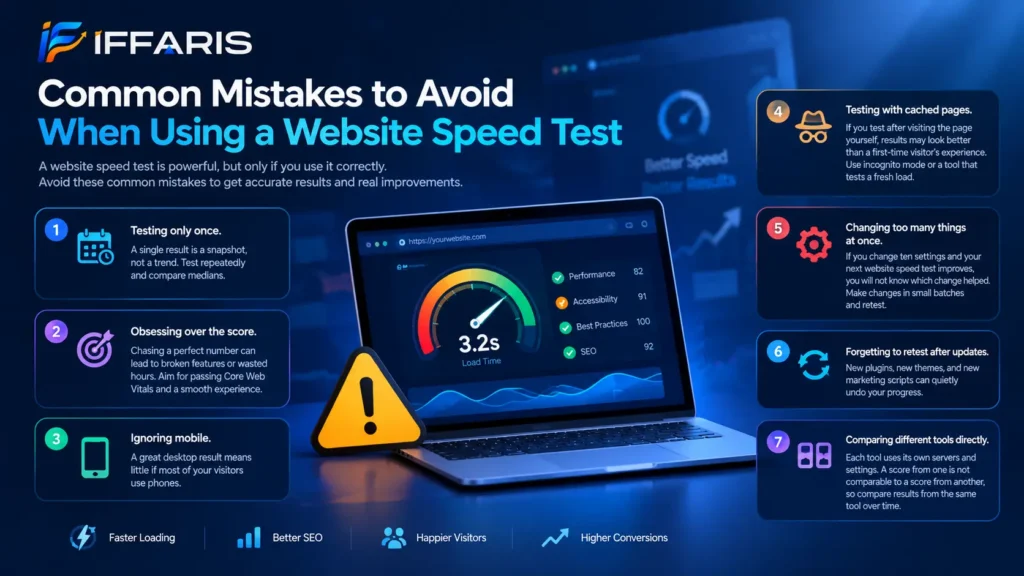
Testing only once. A single result is a snapshot, not a trend. Test repeatedly and compare medians.
Obsessing over the score. Chasing a perfect number can lead you to break features or waste hours. Aim for passing Core Web Vitals and a smooth experience.
Ignoring mobile. A great desktop result means little if most of your visitors use phones.
Testing with cached pages. If you test after visiting the page yourself, results may look better than a first-time visitor’s experience. Use incognito mode or a tool that tests a fresh load.
Changing too many things at once. If you change ten settings and your next website speed test improves, you will not know which change helped. Make changes in small batches and retest.
Forgetting to retest after updates. New plugins, new themes, and new marketing scripts can quietly undo your progress.
Comparing different tools directly. Each tool uses its own servers and settings. A score from one is not comparable to a score from another, so compare results from the same tool over time.
How Often Should You Run a Website Speed Test?
There is no single answer, but a simple schedule works for most sites.
- Monthly for most business websites, as part of routine maintenance.
- After every major change, such as a redesign, a new plugin, a theme update, or a new tracking script.
- Weekly for large online stores or high-traffic sites where small slowdowns cost real money.
- Before and after a hosting move, to prove that the new setup is actually faster.
Making the website speed test part of a regular routine keeps small problems from growing into big ones. It fits naturally into a broader technical SEO checklist, alongside crawl, indexing, and security checks. You can also fold it into a website maintenance checklist so that it never gets forgotten.
Speed is also tied to indexing health. If pages are slow or erroring, Google may struggle to crawl them, which is something you can spot in the Search Console coverage report.
Quick Website Speed Test Checklist
Use this short list the next time you sit down to improve your site.
- Pick three to five key pages to test.
- Run a mobile website speed test on each one, three times.
- Record LCP, INP, CLS, TTFB, and page size.
- Fix the largest opportunity first, usually images or caching.
- Retest and compare against your baseline.
- Check Search Console for real-user Core Web Vitals data.
- Schedule your next website speed test on the calendar.
Frequently Asked Questions About Website Speed Test
What is a good result on a website speed test?
Aim for an LCP under 2.5 seconds, an INP under 200 milliseconds, and a CLS under 0.1. For overall page load, many experts suggest staying under three seconds on mobile. A score above 90 is excellent, but passing Core Web Vitals matters more than the number itself.
Why do different tools give different results?
Each tool uses different test locations, devices, connection speeds, and methods. That is why you should compare results from the same tool over time instead of comparing one tool to another.
Is a free website speed test accurate enough?
Yes, for most sites. Free tools like PageSpeed Insights, GTmetrix, and WebPageTest are widely trusted. Paid tools add monitoring, alerts, and history, which are useful for larger sites but not required to get started.
Can a slow site hurt my rankings?
It can. Page experience is one of many signals Google considers, and slow pages also increase bounce rates and reduce conversions. A fast site will not guarantee top rankings, but a very slow one makes them harder to earn.
How can I make my site pass Core Web Vitals?
Optimize images, enable caching, reduce JavaScript, use a CDN, and reserve space for images and ads. Then run another website speed test to confirm the improvement, and wait a few weeks for field data to update.
Does my hosting affect a website speed test?
Absolutely. Hosting determines your TTFB, which sets the starting point for every other metric. If your server is slow, no amount of front-end tuning will fully fix it.
Final Thoughts
A fast website is not a luxury. It is a basic part of giving visitors a good experience, earning search visibility, and turning traffic into customers. The good news is that you do not need advanced skills to get started. A free website speed test takes minutes, shows you precisely what is wrong, and tells you where to focus.
Run your first test today, record your baseline, and fix the biggest issue first. Then retest, improve again, and make the website speed test a regular habit. Small, steady gains add up quickly, and your visitors, and your search rankings, will notice the difference.
Ready to dig deeper? Explore our related guides on on-page SEO and the technical SEO checklist to keep improving your site’s performance and visibility.